Setting Up Cron Monitoring on a Bootstrap Budget
When bootstrapping, every dollar matters. One silent billing job failure can cost more than years of monitoring. Here's how to get reliable monitoring affordably.

Setting Up Cron Monitoring on a Bootstrap Budget
When you're bootstrapping, every dollar matters. You're making calculated bets on where to invest your limited resources. Cron monitoring might seem like a "nice to have" that can wait until you're profitable. But one silent failure in your billing job or backup script can cost more than years of monitoring subscriptions. This guide shows you how to get reliable cron monitoring without breaking your bootstrap budget. For a complete pricing breakdown, see our cron monitoring pricing comparison.
Prioritize Ruthlessly
You don't need to monitor everything. Start with jobs where failure has immediate, significant consequences.
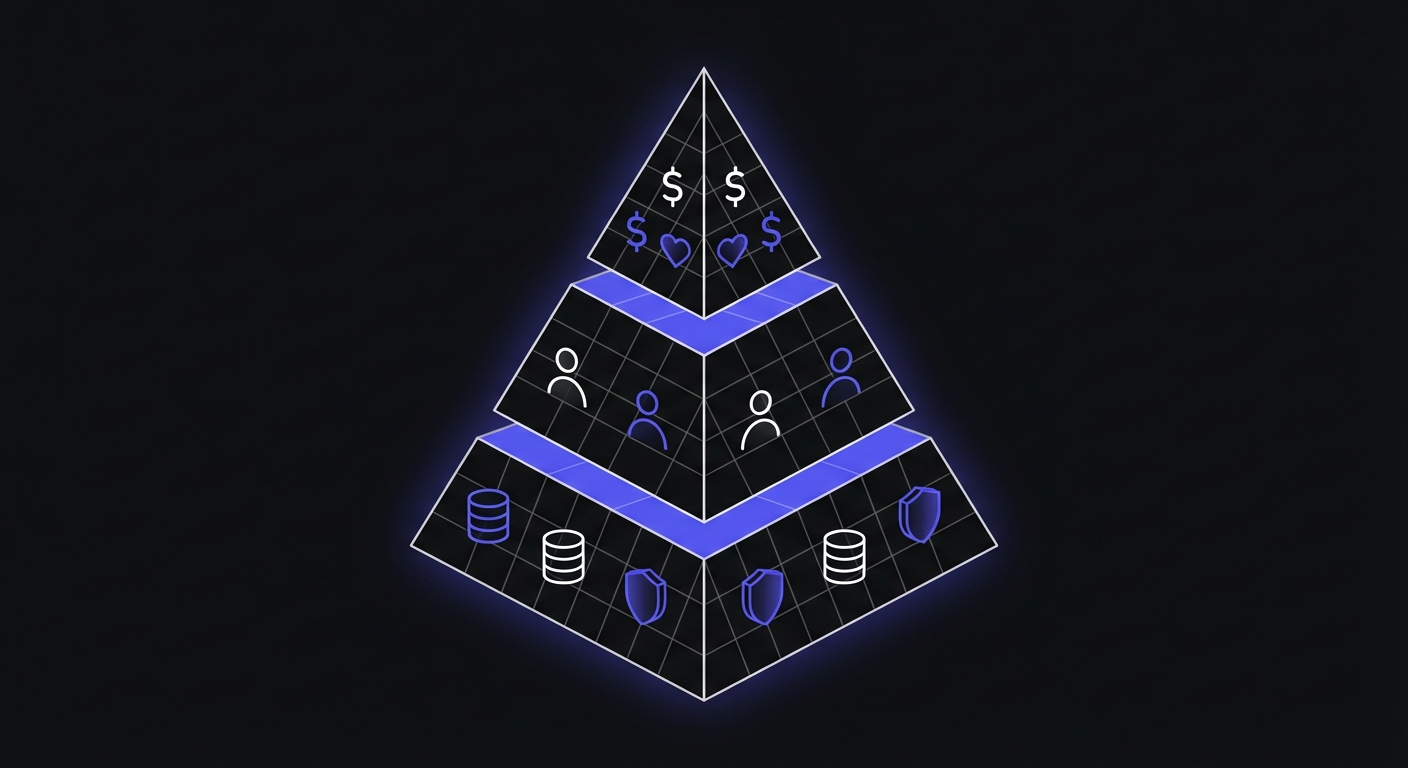
What to Monitor First
Revenue-critical jobs (priority 1):
- Payment processing
- Invoice generation
- Subscription billing
- Order processing
If these fail silently, you lose money directly. Monitor them immediately.
Customer-facing jobs (priority 2):
- Welcome email sequences
- Order confirmation emails
- Data syncs that affect user experience
- Notification queues
These affect customer satisfaction and trust. Monitor soon after launch.
Data protection jobs (priority 3):
- Database backups
- File backups
- Data exports
Backup failures are invisible until disaster strikes. Monitor them before you need them.
What Can Wait
Non-critical automation:
- Log rotation
- Cache warming
- Analytics aggregation
- Development environment tasks
Internal reports:
- Weekly summaries
- Analytics dashboards
- Non-urgent notifications
Cleanup jobs:
- Temp file cleanup
- Old record archiving
- Session expiration
These jobs matter, but failure won't immediately harm your business. Monitor them when you have budget headroom.
A Realistic Starting Set
For a typical bootstrapped SaaS, start with 5-8 monitors. Startups can find more tailored recommendations in our best free cron monitoring for startups guide.
- Database backup (daily)
- Payment processing (hourly or on-demand)
- User notification emails (every few minutes)
- Critical data sync (hourly)
- Subscription renewal check (daily)
This covers your biggest risks with minimal monitor usage.
Start with Free Tiers
Free tiers exist for a reason: they let you prove value before paying. Use them strategically.
Best Free Tiers for Bootstrappers
Healthchecks.io - 20 monitors free
- Full features, no restrictions
- 25+ integrations including Slack
- 7-day data retention
- Open source (can self-host later)
Cron Crew - 15 monitors free
- Unlimited team members
- All features included
- Email, Slack, webhooks
- Clean interface
Better Stack - 10 monitors free
- Part of larger observability platform
- Good if you also need logs
- More limited on free tier
Quick Reference: Free Tier Comparison
| Provider | Free Monitors | Team Members | Key Limitation |
|---|---|---|---|
| UptimeRobot | 50 | 1 | 5-minute intervals only |
| Healthchecks.io | 20 | 3 | 7-day retention |
| Cron Crew | 15 | Unlimited | None |
| Better Stack | 10 | 1 | Basic features |
| Cronitor | 5 | 1 | 1-month retention |
| Dead Man's Snitch | 1 | Unlimited | Single monitor |
UptimeRobot has the highest monitor count, but 5-minute intervals may miss fast jobs. Healthchecks.io and Cron Crew offer the best balance of features and capacity for most bootstrappers.
Enough for Most Early-Stage Products
15-20 free monitors covers:
- 5-8 production cron jobs
- Maybe 3-5 staging jobs
- Room for growth
You might not need to pay for monitoring until you have product-market fit. Explore all your options in our free cron monitoring tools roundup.
Maximize Your Free Monitors
When monitors are limited, use them efficiently.
Combine Related Jobs
If you have jobs that run sequentially, monitor the final step:
#!/bin/bash
# nightly-pipeline.sh

./extract-data.sh
./transform-data.sh
./load-to-warehouse.sh
./send-summary-email.sh

# Only ping if everything succeeded
curl -fsS https://monitor.example.com/ping/pipeline-abc123
One monitor covers the entire pipeline. If any step fails, the final ping won't fire.
Caveat: You won't know which step failed. For critical pipelines, you might want separate monitors for each step. For non-critical pipelines, this saves monitors.
Monitor Wrappers, Not Sub-Tasks
If a job does multiple things, monitor the wrapper:
# user_sync.py
def sync_users():
    fetch_new_users()      # Sub-task 1
    update_existing()      # Sub-task 2
    clean_deleted()        # Sub-task 3
    update_metrics()       # Sub-task 4

if __name__ == "__main__":
    sync_users()
    requests.get("https://monitor.example.com/ping/sync-abc123")
Monitor the sync_users function, not each sub-task. One monitor, full coverage.
One Monitor Per Logical Function
Group by business function, not by script:
Instead of:
- Monitor: backup-mysql.sh
- Monitor: backup-uploads.sh
- Monitor: backup-configs.sh
- (3 monitors)
Try:
- Monitor: nightly-backup (runs all three scripts)
- (1 monitor)
#!/bin/bash
# nightly-backup.sh

./backup-mysql.sh || exit 1
./backup-uploads.sh || exit 1
./backup-configs.sh || exit 1

curl -fsS https://monitor.example.com/ping/backup-abc123
Skip Development/Staging
Don't waste free monitors on non-production environments:
- Development: Don't monitor at all
- Staging: Only if you have spare monitors
- Production: Prioritize these
If you have 15 free monitors, use 12-15 for production. Staging can wait.
Set Sensible Grace Periods
Grace periods determine how late a job can run before triggering an alert. Set them too tight and you get false alarms. Too loose and real failures slip through.
Grace Period Guidelines
| Job Duration | Recommended Grace |
|---|---|
| Under 1 minute | 5-10 minutes |
| 1-5 minutes | 10-15 minutes |
| 5-30 minutes | 15-30 minutes |
| 30-60 minutes | 30-60 minutes |
| Over 1 hour | 1-2 hours |
Start with grace periods 2-3x your expected job duration. A 5-minute backup script should have a 10-15 minute grace period to account for server load variations, network latency, and occasional slow runs.
Preventing Alert Fatigue
Alert fatigue kills monitoring effectiveness. If you're ignoring alerts because they're usually false positives, you'll miss the real failures.
Tune aggressively in the first month:
- Track which monitors fire most often
- If a monitor alerts weekly but never indicates real problems, loosen its grace period
- If a job occasionally fails due to external dependencies, consider retry logic before alerting
Batch non-critical alerts:
- Route internal report failures to email, not Slack
- Send daily digests for non-urgent issues
- Reserve instant notifications for revenue-critical jobs
Use threshold settings when available:
- Alert on 2 consecutive failures instead of 1
- Require 3 missed pings before escalating
- This filters transient network blips
Most free tiers include basic alert configuration. Use it to keep signal high and noise low.
DIY Options (and Why They're Risky)
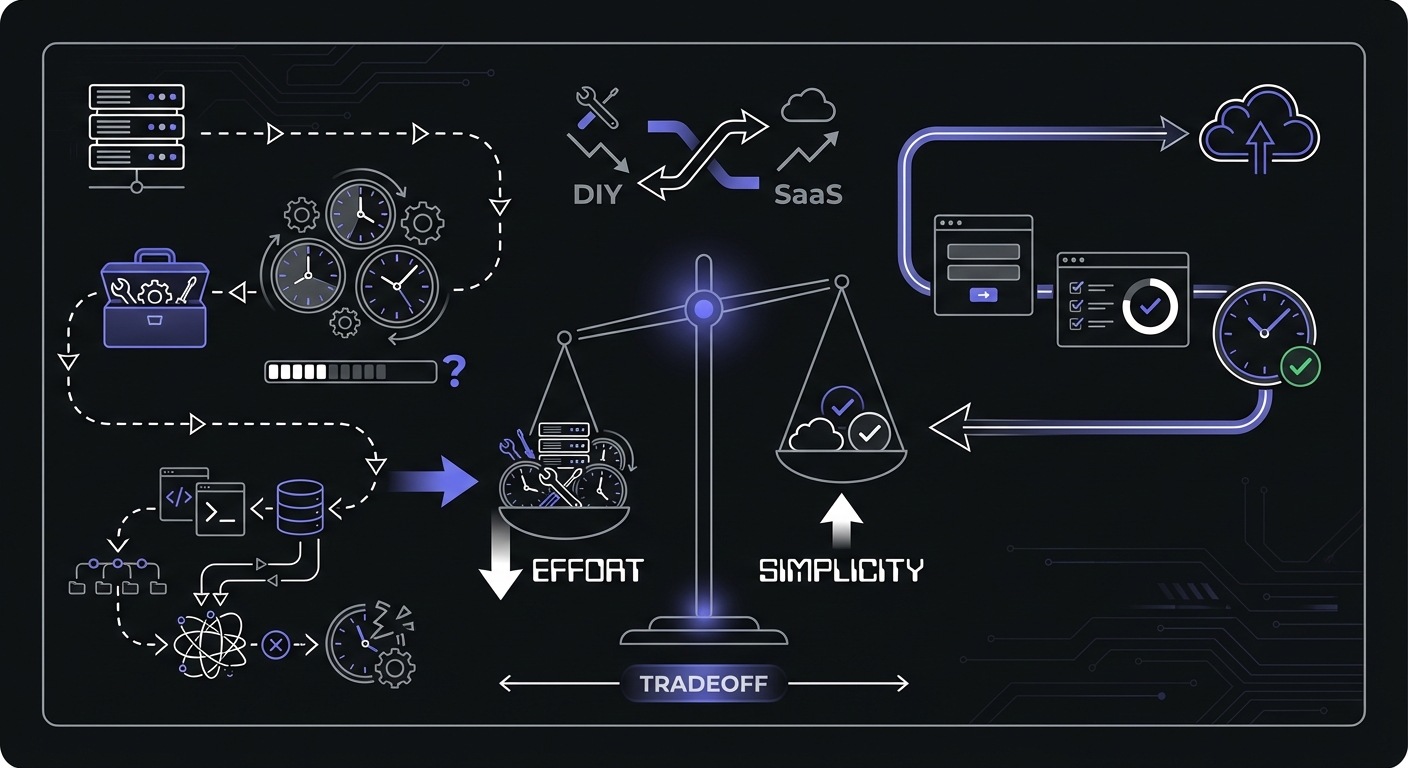
You might think: "I'm a developer, I can build this myself." You can. But should you?
Self-Hosted Healthchecks.io
Healthchecks.io is open source (BSD license). You can run it on your own server.
Costs:
- VPS: $5-10/month
- Time to set up: 2-4 hours
- Time to maintain: 1-2 hours/month
Benefits:
- Unlimited monitors
- Full control
- No ongoing subscription
Risks:
- You're monitoring your monitoring
- If your server goes down, alerts stop
- Security and updates are on you
- Debugging is your problem
Verdict: Good if you have ops experience and want data control. Risky if you're already stretched thin.
Roll Your Own Monitoring
Build a simple heartbeat system with:
- A database table for expected pings
- An HTTP endpoint to receive pings
- A cron job that checks for missed pings
- An email sender for alerts
Estimated development time: 4-8 hours for basic version
Costs:
- Your time (at $50-150/hour?)
- Server costs ($5-10/month)
- Ongoing maintenance
Hidden costs:
- Feature creep ("let me just add Slack")
- Debugging time when it breaks
- No redundancy unless you build it
- Monitoring the monitor problem
The math:
- 8 hours to build x $75/hour = $600 in time
- Monitoring service: $15/month x 40 months = $600
You'd need to use your DIY solution for over 3 years to break even versus just paying $15/month.
Verdict: Rarely makes sense. Your time is better spent on your product.
When to Spend Money
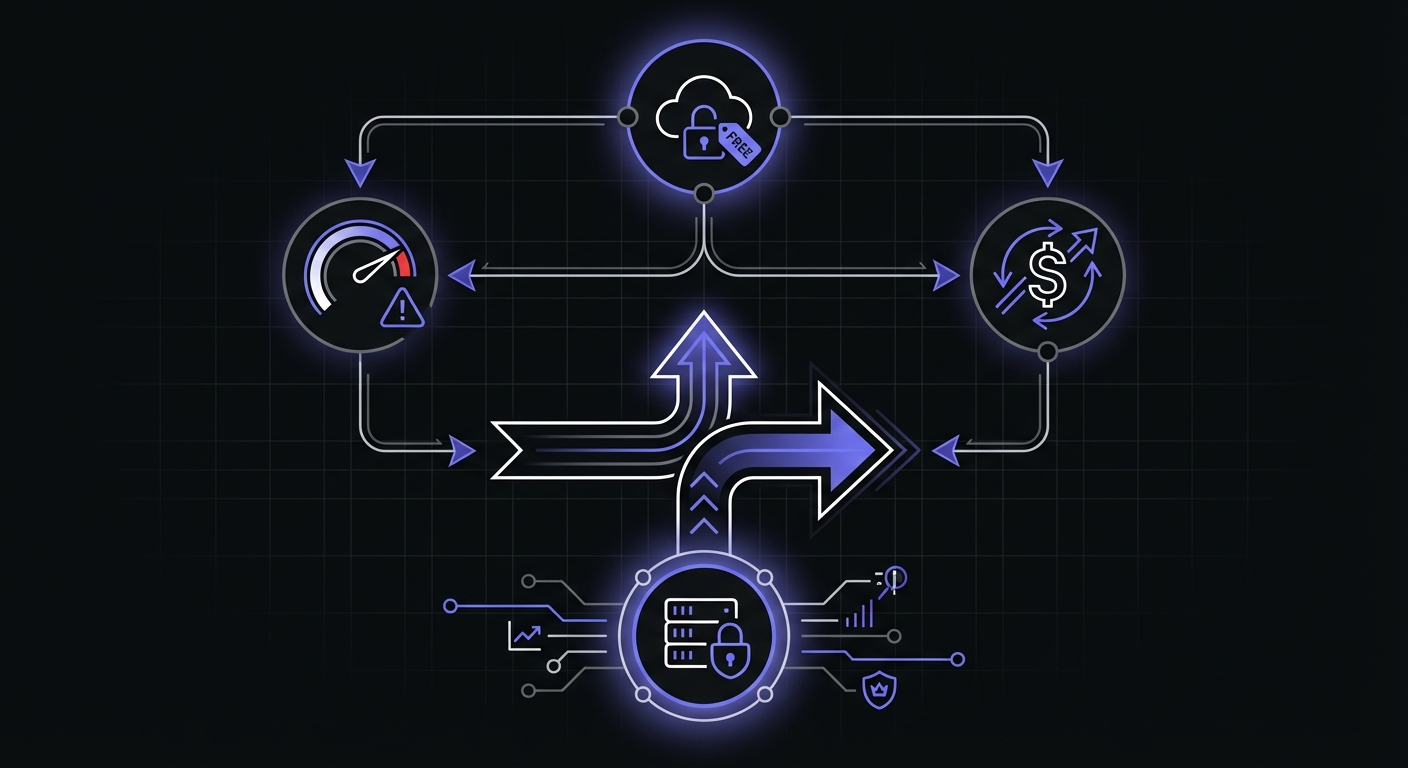
Free isn't always the right choice. Here's when it makes sense to pay.
You Have Your First Paying Customer
Once someone is paying you money, protect their experience. The cost of a failed billing job or broken feature is no longer hypothetical.
Action: Upgrade to paid monitoring for production-critical jobs.
Jobs Directly Affect Revenue
If a job failing means:
- Missed invoices
- Failed payment processing
- Broken e-commerce syncs
Then $15-30/month for monitoring is cheap insurance.
Calculation:
- One failed billing job: $X in delayed/lost revenue
- Monitoring: $15/month
- Break-even: First prevented incident
Free Tier Limits Productivity
Signs you've outgrown free:
- Constantly at 90%+ of monitor limit
- Can't add monitoring for new jobs
- Spending time optimizing monitor allocation
At this point, the mental overhead of managing limits exceeds the $15/month cost.
Action: Just upgrade. Your time is worth more. Understanding the ROI of cron monitoring helps justify the expense.
Budget-Friendly Paid Options
When you do need to pay, here are the best value options:
Cron Crew - $15/month for 50 monitors
What you get:
- 50 monitors
- Unlimited team members
- Email, Slack, webhooks
- All features included
Why it's good for bootstrappers:
- Predictable cost
- No per-user fees as you hire
- Room to grow
Healthchecks.io - $20/month for 100 monitors
What you get:
- 100 monitors
- 3 team members
- 25+ integrations
- 30-day data retention
Why it's good for bootstrappers:
- Best cost-per-monitor ratio
- Established, reliable service
- Can self-host if needed later
Cronly - ~$1/monitor
What you get:
- Pay exactly for what you use
- No minimum commitment
- Basic monitoring features
Why it's good for bootstrappers:
- True pay-as-you-go
- Starts very cheap
- Scales linearly
Avoid Overspending
These mistakes waste money at the bootstrap stage.
Don't Buy Enterprise Features Early
Enterprise tiers include:
- SSO/SAML (do you even have an identity provider?)
- Audit logging (do you have compliance requirements?)
- Dedicated support (have you ever called vendor support?)
- 99.9% SLA (is your own app at 99.9%?)
You're paying for features you won't use for years. Start with the lowest tier that meets your actual needs.
Skip SMS If Email + Slack Work
SMS alerts cost extra on most platforms. Ask yourself:
- Do you actually check SMS faster than Slack?
- Is anyone on-call at 3 AM?
- Are any jobs truly "wake me up now" critical?
For most bootstrapped products, the answer is no. Email and Slack are fine.
Exception: If you're running critical infrastructure (payments, medical, etc.), SMS might be worth it.
Go Annual Only If You're Sure
Annual billing typically saves 10-20%. But:
- You're locked in for 12 months
- No refunds if you switch
- Needs change as you grow
Take annual if:
- You've used the tool for 3+ months
- Your needs are stable
- You're confident in the vendor
Stay monthly if:
- You're still evaluating
- Your product is changing rapidly
- The discount is less than 15%
Our $15/Month Sweet Spot
At Cron Crew, we priced our Starter plan at $15/month for a reason.
Why $15?
- Low enough to not need budget approval: Most founders can just buy it
- High enough to be sustainable: We can provide reliable service
- Simple enough to understand: No hidden fees, no complex calculations
What You Get vs. Competitors
At $15/month:
Cron Crew:
- 50 monitors
- Unlimited users
- All integrations
- All features
Cronitor (at $20/month):
- 10 monitors
- 1 user
- Basic integrations
- Limited features
The difference: 5x more monitors, unlimited users, same price range.
No Surprises
Our pricing page shows exactly what you get:
- Number of monitors
- User limits (unlimited)
- Features (all included)
- Integrations (all included)
You won't find hidden per-user fees, SMS credit charges, or integration paywalls.
Practical Bootstrap Monitoring Checklist
Use this checklist to set up monitoring on a bootstrap budget:
Week 1: Foundation
- Sign up for free tier (Healthchecks.io or Cron Crew)
- Add monitoring to your database backup
- Add monitoring to your most critical job
- Test that alerts arrive (deliberately skip a ping)
Week 2-4: Expand
- Add monitoring to payment/billing jobs
- Add monitoring to customer notification jobs
- Add monitoring to any data sync jobs
- Set up Slack integration if you use Slack
Month 2-3: Refine
- Review which monitors are alerting (reduce noise)
- Adjust grace periods based on actual job duration
- Add monitoring to remaining production jobs
- Consider staging environment monitors if you have spare capacity
When Revenue Comes:
- Upgrade to paid tier when approaching limits
- Add SMS for truly critical jobs (if needed)
- Invite team members to dashboard
- Document what each monitor tracks
Conclusion
Cron monitoring doesn't have to be expensive. With free tiers offering 15-20 monitors, most bootstrapped products can have solid monitoring coverage without spending a dime.
Key strategies:
- Prioritize ruthlessly: Monitor revenue and customer-facing jobs first
- Use free tiers strategically: 15-20 monitors covers most early-stage needs
- Maximize efficiency: Combine related jobs, skip non-production
- Skip DIY: Your time is worth more than the cost of a service
- Upgrade deliberately: Pay when you hit limits or have paying customers
Budget guidelines:
- Pre-revenue: $0/month (free tier)
- First customers: $15-20/month
- Growing product: $20-50/month
The cost of one silent failure, one missed billing run, one corrupted backup, far exceeds years of monitoring subscriptions. This is one area where spending a little prevents losing a lot.
Ready to start? Try Cron Crew free with 15 monitors, unlimited users, and all features included. No credit card required. Add monitoring to your first critical job in under 5 minutes.