.NET Hangfire Job Monitoring: A Complete Guide
Hangfire's dashboard shows failures but doesn't alert you. When jobs fail at 3 AM, you need more than a dashboard. Here's how to add external monitoring.
.NET Hangfire Job Monitoring: A Complete Guide
Hangfire has become the go-to library for background job processing in .NET applications. Its elegant API and built-in dashboard make it easy to schedule recurring jobs, but when those jobs fail silently at 3 AM, you need more than a dashboard to know about it. This guide covers how to add external monitoring to your Hangfire recurring jobs so you never miss a failure. For foundational concepts, see our complete guide to cron job monitoring.
Understanding Hangfire Recurring Jobs
Hangfire makes scheduling recurring jobs straightforward with the RecurringJob.AddOrUpdate method. You define your job logic, specify a cron expression, and Hangfire handles the rest.
RecurringJob.AddOrUpdate<DailyReportJob>(
    "daily-report",
    job => job.Execute(),
    Cron.Daily);
Hangfire supports standard cron expressions, giving you flexibility to schedule jobs at any interval. The built-in dashboard provides visibility into job status, execution history, and failures.
However, the dashboard has significant limitations for production monitoring:
- No alerting: The dashboard shows failures but does not notify you
- Requires access: You need to be logged in and looking at the dashboard to see issues
- Server blindness: If the Hangfire server process crashes, the dashboard itself becomes unavailable
- No duration tracking: You cannot easily detect jobs that are running longer than expected

Why External Monitoring Matters
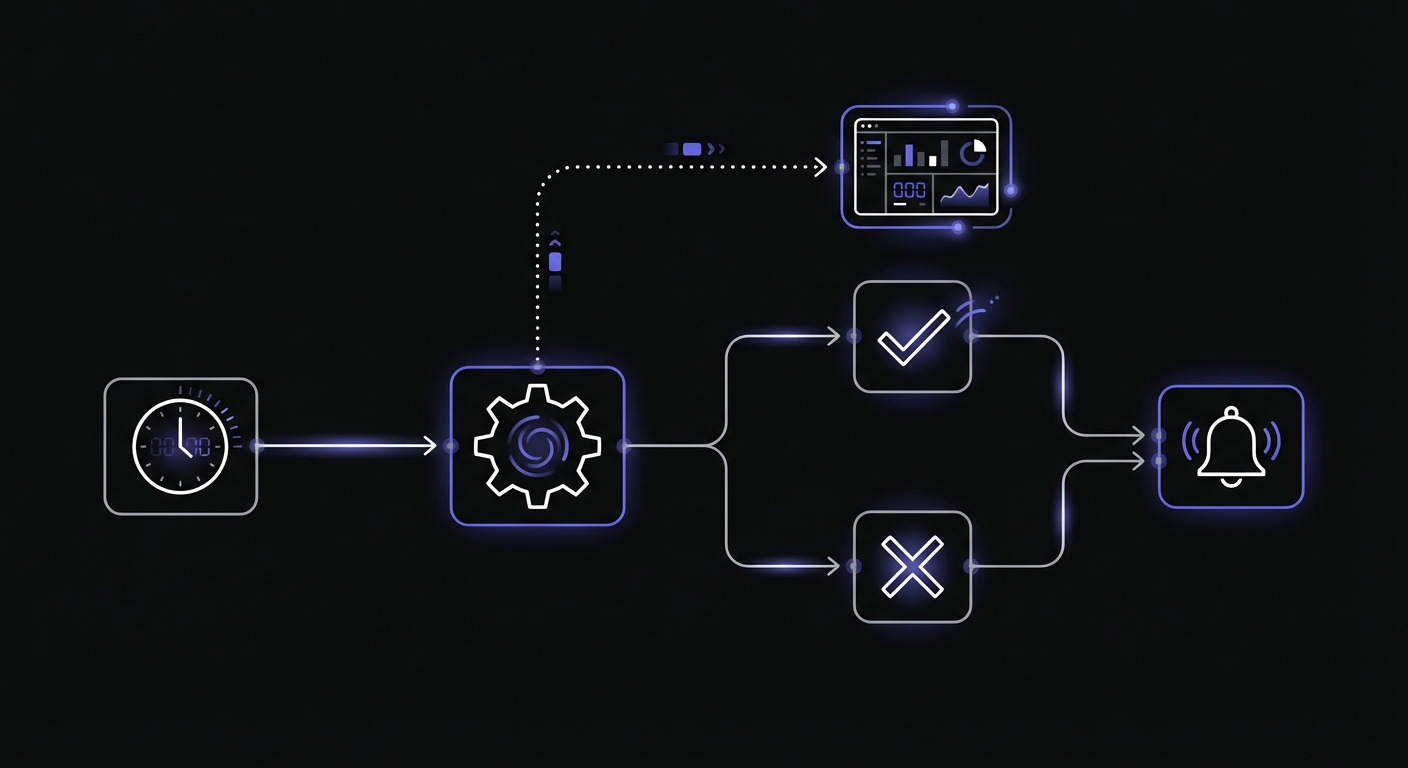
The Hangfire dashboard is a diagnostic tool, not a monitoring system. External monitoring fills critical gaps:
Server and process failures: If your application server crashes or the Hangfire background process stops, jobs simply will not run. The dashboard cannot tell you about this because it is part of the same system that failed.
Missed schedules: A job scheduled to run every hour might silently stop running due to configuration changes, deployment issues, or infrastructure problems. Without external monitoring, you will not know until the consequences become visible.
Duration anomalies: A job that normally completes in 30 seconds but suddenly takes 10 minutes indicates a problem. External monitoring with duration tracking catches these issues before they escalate.
Proactive alerting: You want to know about failures immediately through Slack, email, or SMS, not by checking a dashboard.
Option 1: Job Filter Approach
Hangfire's filter system provides an elegant way to add monitoring without modifying your job code. Create a custom filter that pings your monitoring endpoint on job start and completion.
public class CronMonitorFilter : JobFilterAttribute, IServerFilter
{
    private readonly string _monitorUrl;
    private readonly IHttpClientFactory _clientFactory;

    public CronMonitorFilter(string monitorUrl, IHttpClientFactory clientFactory)
    {
        _monitorUrl = monitorUrl;
        _clientFactory = clientFactory;
    }

    public void OnPerforming(PerformingContext context)
    {
        var client = _clientFactory.CreateClient();
        client.GetAsync($"{_monitorUrl}/start").ConfigureAwait(false);
    }

    public void OnPerformed(PerformedContext context)
    {
        var client = _clientFactory.CreateClient();
        var url = context.Exception != null
            ? $"{_monitorUrl}/fail"
            : _monitorUrl;
        client.GetAsync(url).ConfigureAwait(false);
    }
}
Apply the filter to specific jobs using attributes or register it globally for all jobs. The filter approach keeps monitoring concerns separate from business logic.
Option 2: In-Job Monitoring
For more control over when monitoring signals are sent, implement monitoring directly within your job classes. This approach works well when you need to signal success only after specific conditions are met.
public class DailyReportJob
{
    private readonly IHttpClientFactory _clientFactory;
    private readonly IConfiguration _config;
    private readonly string _monitorUrl;

    public DailyReportJob(IHttpClientFactory clientFactory, IConfiguration config)
    {
        _clientFactory = clientFactory;
        _config = config;
        _monitorUrl = _config["CronMonitoring:DailyReport"];
    }

    public async Task Execute()
    {
        var client = _clientFactory.CreateClient();
        await client.GetAsync($"{_monitorUrl}/start");

        try
        {
            await GenerateReport();
            await client.GetAsync(_monitorUrl);
        }
        catch (Exception ex)
        {
            await client.GetAsync($"{_monitorUrl}/fail");
            throw;
        }
    }

    private async Task GenerateReport()
    {
        // Report generation logic
    }
}
This pattern signals the start of execution, performs the work, and then signals success or failure based on the outcome.
Option 3: Sentry Crons Integration
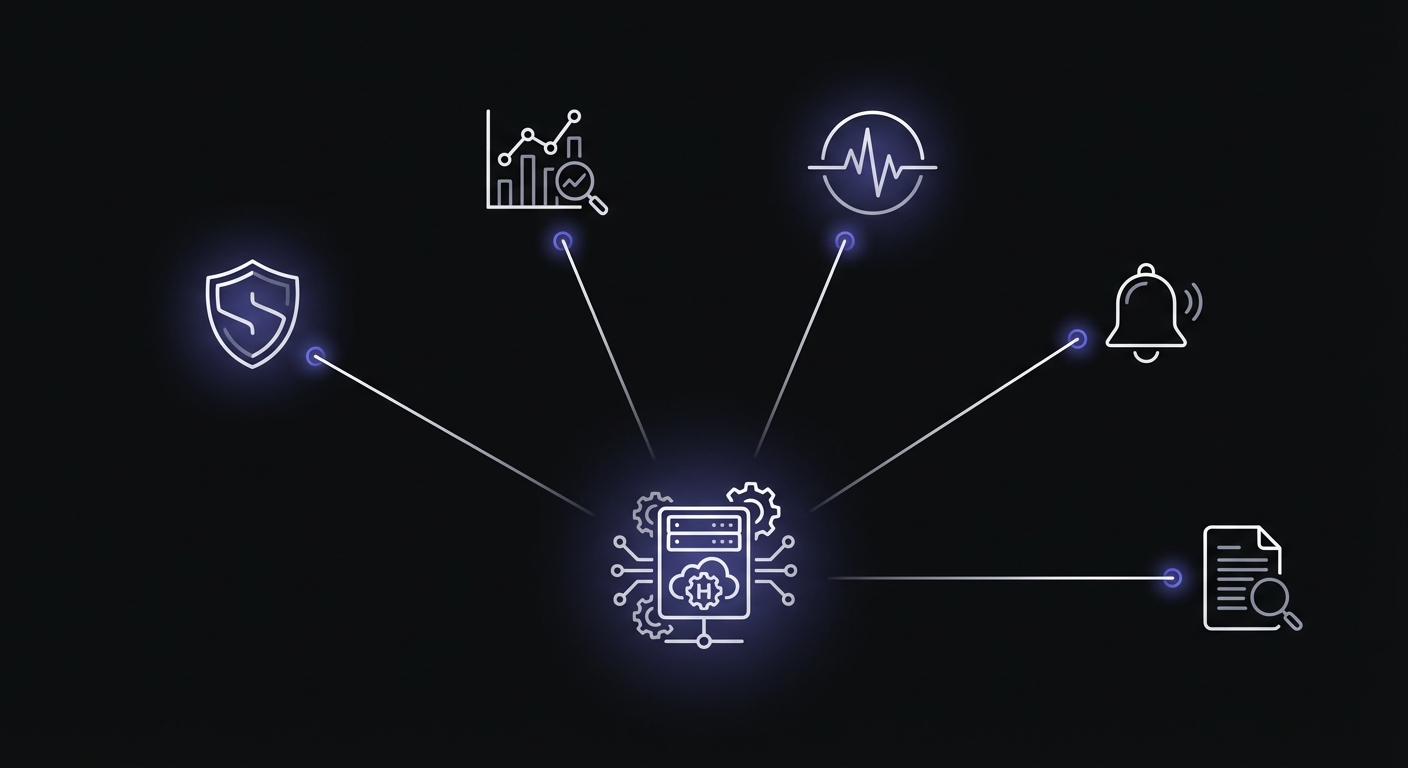
Sentry provides native Hangfire integration through the Sentry.Hangfire package. This approach automatically tracks job check-ins without manual HTTP calls.
// Install: dotnet add package Sentry.Hangfire

// In Program.cs or Startup.cs
builder.Services.AddHangfire(configuration => configuration
    .UseSqlServerStorage(connectionString)
    .UseSentry());  // Enables automatic check-ins
Mark jobs for monitoring with the SentryMonitorSlug attribute:
public class PricingUpdateJob
{
    [SentryMonitorSlug("update-pricing")]
    public void Execute()
    {
        // Job logic here
    }
}
Sentry automatically sends CheckInStatus.InProgress when the job starts, CheckInStatus.OK on success, and CheckInStatus.ERROR on exceptions. This eliminates manual HTTP calls while providing full observability.
Option 4: Application Insights Integration
For Azure-hosted applications, the Hangfire.Extensions.ApplicationInsights package tracks jobs as Application Insights requests:
// Install: dotnet add package Hangfire.Extensions.ApplicationInsights

// In ConfigureServices
services.AddHangfireApplicationInsights();
Jobs appear in Application Insights as request telemetry, enabling correlation with other application traces, custom dashboards, and Azure Monitor alerts.
Configuration Patterns
Store your monitoring URLs in configuration rather than hardcoding them. This allows different URLs per environment and makes it easy to update endpoints without code changes.
{
  "CronMonitoring": {
    "DailyReport": "https://ping.example.com/abc123",
    "HourlySync": "https://ping.example.com/def456",
    "WeeklyCleanup": "https://ping.example.com/ghi789"
  }
}
Access these values through dependency injection:
public class MonitoringOptions
{
    public string DailyReport { get; set; }
    public string HourlySync { get; set; }
    public string WeeklyCleanup { get; set; }
}

// In Startup.cs or Program.cs
services.Configure<MonitoringOptions>(
    configuration.GetSection("CronMonitoring"));
Best Practices for .NET Monitoring
Use IHttpClientFactory: Never create HttpClient instances directly in your jobs. The factory manages connection pooling and prevents socket exhaustion.
services.AddHttpClient("CronMonitor", client =>
{
    client.Timeout = TimeSpan.FromSeconds(10);
});
Do not block on monitoring calls: Monitoring should not slow down your jobs. Use fire-and-forget patterns for non-critical signals, but ensure failures are still reported.
Configure appropriate timeouts: Set short timeouts on monitoring HTTP calls. A 10-second timeout prevents monitoring issues from blocking job execution.
Handle monitoring failures gracefully: If the monitoring service is unavailable, your jobs should still complete. Log monitoring failures locally but do not let them crash your jobs.
try
{
    await client.GetAsync(_monitorUrl);
}
catch (HttpRequestException ex)
{
    _logger.LogWarning(ex, "Failed to ping monitor at {Url}", _monitorUrl);
}
Understanding Hangfire Retry Behavior
Hangfire applies the AutomaticRetryAttribute globally by default with 10 retry attempts and exponential backoff delays. Jobs move to the Failed state only after exhausting all retries.
// Disable retries for a specific job
[AutomaticRetry(Attempts = 0)]
public void CriticalJob() { }

// Customize retry attempts globally
GlobalJobFilters.Filters.Add(new AutomaticRetryAttribute { Attempts = 5 });
This retry behavior affects monitoring strategy: external monitors should account for the retry window. A job that eventually succeeds after 3 retries may not need an alert, but one that fails all 10 attempts definitely does.
Securing the Hangfire Dashboard
The dashboard exposes job details, method names, and serialized arguments. By default, only local requests are allowed. For production, implement IDashboardAuthorizationFilter:
public class DashboardAuthFilter : IDashboardAuthorizationFilter
{
    public bool Authorize(DashboardContext context)
    {
        var httpContext = context.GetHttpContext();
        return httpContext.User.Identity?.IsAuthenticated == true
            && httpContext.User.IsInRole("Admin");
    }
}

// Apply the filter
app.UseHangfireDashboard("/hangfire", new DashboardOptions
{
    Authorization = new[] { new DashboardAuthFilter() }
});
Consider enabling read-only mode for non-admin users via IsReadOnlyFunc to allow visibility without control.
Common Hangfire Job Patterns
Different job types benefit from monitoring in different ways:
Report generation: Monitor for completion and track duration. Reports that suddenly take longer may indicate data growth or query performance issues.
Email queue processing: Monitor queue processor runs. If the processor stops running, emails pile up without anyone knowing.
Database maintenance: Jobs like cleanup, archival, or index maintenance should be monitored to ensure they complete within expected timeframes.
Third-party integrations: API sync jobs are prone to failures due to rate limits, authentication issues, or service outages. External monitoring catches these immediately.
Monitoring Options Quick Reference
| Approach | Setup Effort | Best For | Limitations |
|---|---|---|---|
| Custom HTTP Filter | Medium | Full control, any endpoint | Manual implementation |
| In-Job Monitoring | Low | Simple jobs, quick setup | Code coupling |
| Sentry Crons | Low | Existing Sentry users | Sentry subscription required |
| Application Insights | Low | Azure environments | Azure ecosystem lock-in |
| Healthchecks.io/Cronitor | Low | Dedicated cron monitoring | Additional service cost |
Hangfire vs Alternatives
Hangfire is ideal when you need job persistence, a visual dashboard, and automatic retries without managing separate infrastructure. For comparison:
- BackgroundService: Built-in .NET, no persistence or dashboard. Use for simple, non-critical tasks.
- Quartz.NET: More complex scheduling (calendars, business days). Use when schedule precision matters more than ease of use.
- Temporal: Workflow orchestration for long-running processes with multiple steps. Use for complex business workflows, not simple recurring jobs.
Hangfire hits the sweet spot for most .NET applications: easy setup, reliable persistence, and sufficient features for typical background job needs.
Setting Up Your Monitors
When configuring monitors in Cron Crew for your Hangfire jobs:
- Set appropriate schedules: Match the monitor schedule to your job's cron expression
- Configure grace periods: Allow for normal variation in execution time
- Choose alert channels: Route critical job failures to immediate channels like SMS or Slack
- Track duration: Enable duration tracking to catch performance degradation early
Conclusion
Hangfire's built-in dashboard is useful for diagnostics but insufficient for production monitoring. By adding external monitoring through job filters or in-job implementation, you gain proactive alerting, duration tracking, and visibility into failures that would otherwise go unnoticed.
Start by identifying your most critical recurring jobs and add monitoring to those first. As you build confidence in the approach, expand coverage to all scheduled tasks. The small investment in setup pays dividends when you catch your first silent failure before it impacts users.
For help choosing a monitoring service for your .NET applications, see our cron monitoring pricing comparison and best cron monitoring tools guides.
Ready to add monitoring to your Hangfire jobs? Cron Crew offers a simple HTTP-based API that integrates seamlessly with .NET applications. Create your first monitor in minutes and never miss a background job failure again.