WordPress Cron Monitoring for WooCommerce Stores
WordPress wp-cron is unreliable for e-commerce. When scheduled tasks fail, consequences range from minor issues to significant revenue loss. Here's how to fix it.

WordPress Cron Monitoring for WooCommerce Stores
WordPress powers over 40% of the web, and WooCommerce runs millions of online stores. Behind these sites, critical scheduled tasks handle everything from processing sales to managing inventory. When these tasks fail silently, the consequences range from minor inconveniences to significant revenue loss. This guide explains how WordPress cron works, why it often fails, and how to add proper monitoring to protect your WooCommerce store. For foundational concepts, see our complete guide to cron job monitoring.
How WordPress Cron Works
WordPress has its own scheduling system called wp-cron. Unlike traditional system cron that runs on a fixed schedule regardless of activity, wp-cron is triggered by site visits. When someone loads a page on your WordPress site, WordPress checks if any scheduled tasks are due and runs them.
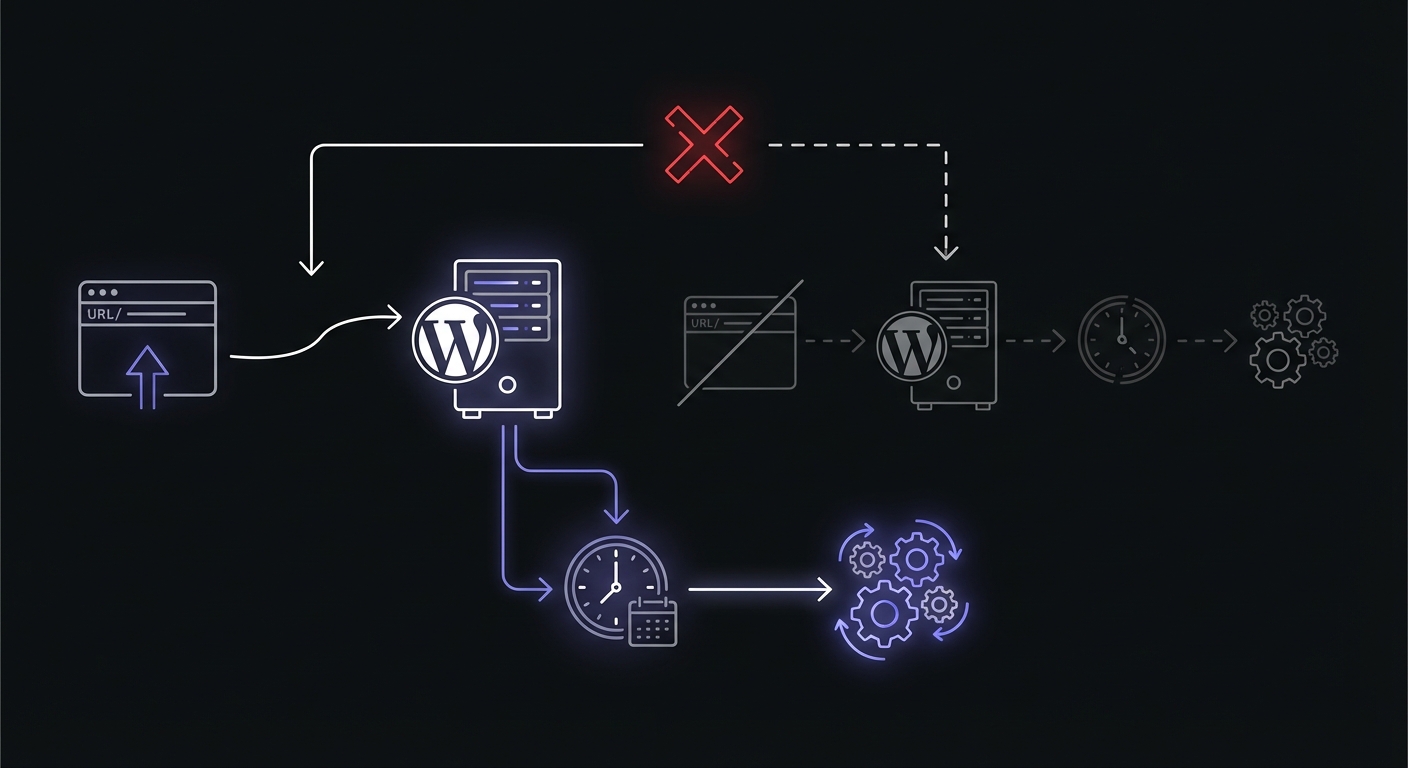
This design made sense when WordPress was primarily a blogging platform. It avoided the need for server access to configure system cron and worked on any hosting environment. However, this approach has significant limitations for modern e-commerce sites.
Why wp-cron Is Unreliable
Traffic dependency: If your site has low traffic, scheduled tasks may not run on time. A job scheduled for midnight might not execute until someone visits at 8 AM the next morning.
High-traffic problems: On busy sites, wp-cron can trigger on every page load, consuming resources and potentially running the same jobs multiple times.
Hosting interference: Some managed hosts disable wp-cron or modify its behavior to reduce server load.
No guaranteed execution: wp-cron provides no guarantee that tasks run at their scheduled time or run at all.
Common Misconceptions
Many WordPress users assume their scheduled tasks are running reliably. The wp-cron system does not provide feedback when tasks fail or miss their schedule. You might believe your backups are running daily when they have not executed in weeks.
Critical WooCommerce Cron Jobs
WooCommerce registers several scheduled tasks that directly impact your store's operations:
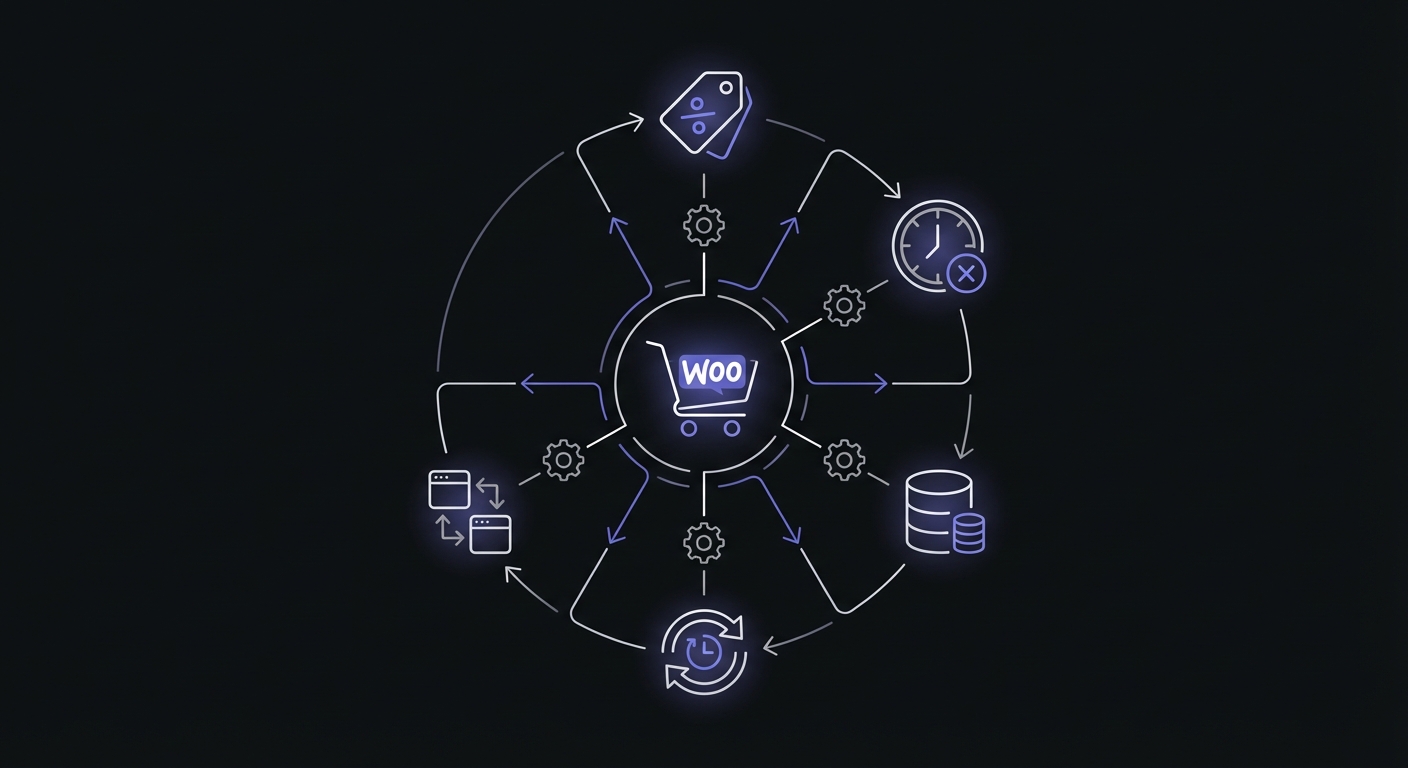
woocommerce_scheduled_sales: Activates and deactivates sale prices based on scheduled dates. If this fails, your Black Friday sale might not start on time.
woocommerce_cancel_unpaid_orders: Cancels orders that remain unpaid after a configured period. Failure leads to inventory being held indefinitely for abandoned carts.
woocommerce_cleanup_sessions: Removes expired session data from the database. When this stops running, your sessions table grows until it impacts site performance.
woocommerce_geoip_updater: Updates the GeoIP database used for location-based features. Outdated data affects tax calculations and shipping estimates.
Payment gateway plugins add their own scheduled tasks for processing webhooks, reconciling transactions, and handling subscription renewals.
WooCommerce Subscriptions Hooks
If you use WooCommerce Subscriptions, these additional hooks are critical to monitor:
| Hook | Purpose |
|---|---|
woocommerce_scheduled_subscription_payment | Processes recurring payments at renewal date |
woocommerce_scheduled_subscription_trial_end | Handles trial period expiration |
woocommerce_scheduled_subscription_payment_retry | Retries failed payment attempts |
woocommerce_scheduled_subscription_expiration | Manages subscription end dates |
woocommerce_scheduled_subscription_end_of_prepaid_term | Transitions pending-cancel subscriptions |
Monitoring these hooks separately from core WooCommerce tasks ensures you catch subscription-specific failures before they impact recurring revenue.
Why WooCommerce Cron Failures Hurt
The business impact of cron failures in WooCommerce is immediate and measurable:
Sale prices not activating: Customers see regular prices during your promotion, either missing the sale or contacting support, creating extra work and lost sales.
Unpaid orders accumulating: Inventory remains reserved for orders that will never complete, leading to artificial stock-outs on popular items.
Session table bloat: The wp_woocommerce_sessions table can grow to millions of rows, slowing every page load on your site.
Subscription billing failures: For stores using WooCommerce Subscriptions, failed renewal processing means delayed revenue and confused customers.
Inventory sync issues: If you sync inventory with external systems, failed sync jobs lead to overselling or showing items as out of stock when they are available.
Action Scheduler: WooCommerce's Alternative
WooCommerce 3.0+ includes Action Scheduler, a queue-based task system that operates differently from wp-cron. While wp-cron triggers on page visits, Action Scheduler maintains a persistent queue and processes tasks in batches.
Action Scheduler advantages over wp-cron:
- Queue-based processing: Tasks are queued and executed in order rather than all at once
- Better for high-volume operations: Handles bulk email campaigns, large inventory updates, and subscription renewals more reliably
- Traceable execution: View scheduled, pending, and completed actions at WooCommerce > Status > Scheduled Actions
- Automatic retries: Failed actions are automatically rescheduled
WooCommerce Subscriptions, webhooks, and many extensions use Action Scheduler instead of wp-cron. However, Action Scheduler still relies on wp-cron to trigger its queue processing by default. Switching to system cron benefits both systems.
To scale Action Scheduler for high-volume stores, use WP-CLI to process the queue directly:
*/1 * * * * cd /path/to/wordpress && wp action-scheduler run --forceThis bypasses wp-cron entirely for Action Scheduler tasks, ensuring reliable execution even during traffic spikes.
Setting Up Real Cron
The first step to reliable WordPress scheduling is replacing wp-cron with system cron. This ensures tasks run on schedule regardless of site traffic.
Disable wp-cron in your wp-config.php file:
define('DISABLE_WP_CRON', true);Then add a system cron job to trigger wp-cron on a regular schedule:
*/5 * * * * wget -q -O - https://yoursite.com/wp-cron.php > /dev/null 2>&1This runs wp-cron every 5 minutes, which is sufficient for most WooCommerce sites. Adjust the frequency based on how time-sensitive your scheduled tasks are.
Adding Monitoring to WordPress Cron
With system cron triggering wp-cron, you now need visibility into whether tasks actually execute successfully.
Plugin Approach for Non-Developers
Install the WP Crontrol plugin to see all scheduled tasks and their next run times. While WP Crontrol does not provide external monitoring, it helps you understand what tasks exist and when they should run.
For actual monitoring, you need to integrate with an external service that can alert you when tasks fail.
Code Approach for Critical Jobs
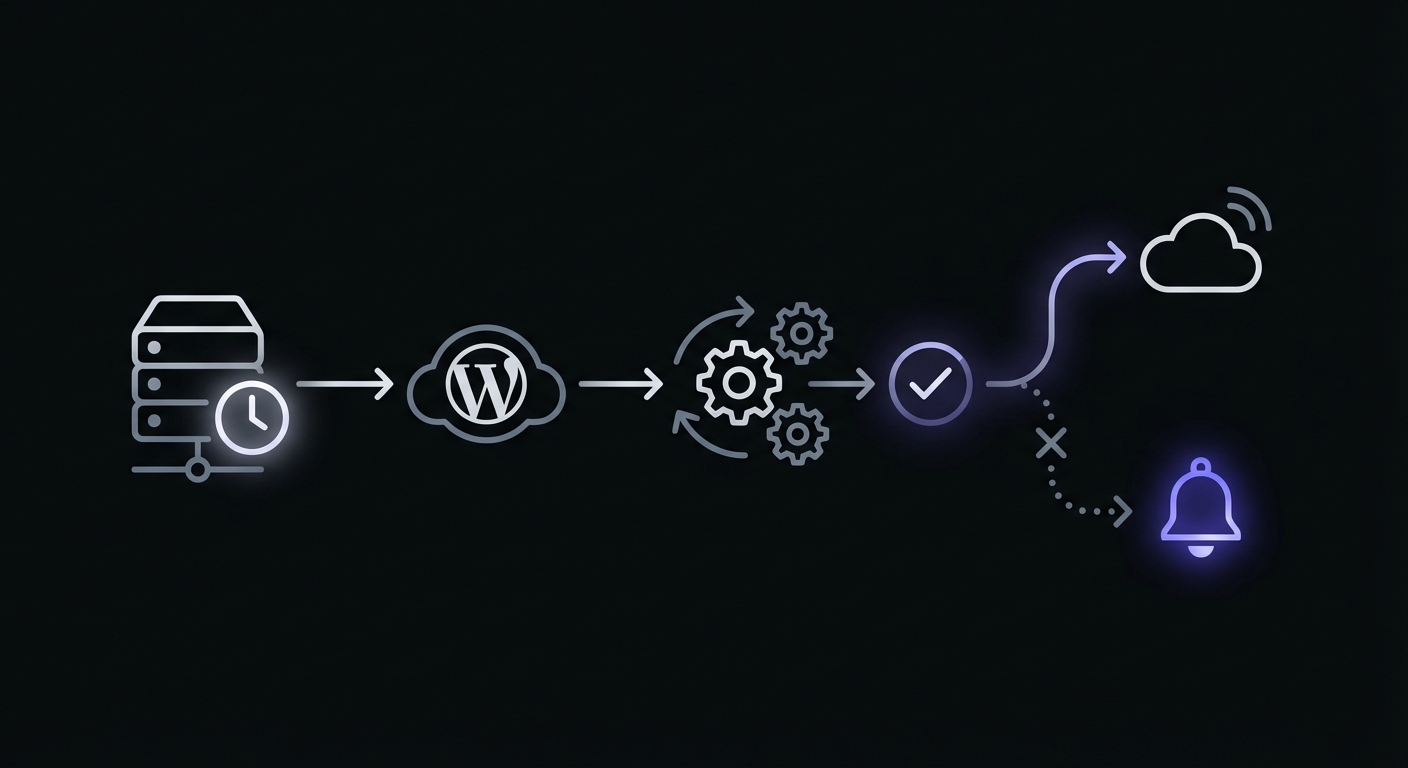
Add monitoring hooks around your most important WooCommerce jobs. This example monitors the scheduled sales job:
// Add to functions.php or a custom plugin

// Signal job start
add_action('woocommerce_scheduled_sales', 'monitor_sales_cron_start', 1);
function monitor_sales_cron_start() {
    wp_remote_get('https://ping.example.com/woo-sales/start', array(
        'timeout' => 10,
        'blocking' => false
    ));
}

// Signal job completion
add_action('woocommerce_scheduled_sales', 'monitor_sales_cron_complete', 999);
function monitor_sales_cron_complete() {
    wp_remote_get('https://ping.example.com/woo-sales', array(
        'timeout' => 10,
        'blocking' => false
    ));
}
The priority numbers (1 and 999) ensure the monitoring hooks run first and last, wrapping the actual job execution.
Monitoring the Cron Runner Itself
Monitoring individual jobs is valuable, but you also need to know if wp-cron stops running entirely. Wrap your system cron command with monitoring:
*/5 * * * * curl -fsS https://ping.example.com/wp-cron-runner/start && wget -q -O - https://yoursite.com/wp-cron.php > /dev/null 2>&1 && curl -fsS https://ping.example.com/wp-cron-runnerThis signals before triggering wp-cron and again after completion. If your server stops executing the cron job, you will know immediately.
Common WordPress Cron Issues
Understanding common failure modes helps you set up appropriate monitoring:
Object cache conflicts: Persistent object caching can interfere with wp-cron's ability to determine which tasks are due. Jobs may be skipped or run repeatedly.
Low-traffic sites: Even with system cron, some hosting environments throttle or block automated requests to wp-cron.php.
Plugin conflicts: Poorly coded plugins can break the cron system entirely or cause specific jobs to fail.
Memory limits: Jobs that process large amounts of data may hit PHP memory limits and fail silently.
Loopback connection failures: Some servers cannot connect back to themselves to trigger wp-cron.php. If standard cron setup fails, try the ALTERNATE_WP_CRON mode:
define('ALTERNATE_WP_CRON', true);This uses a redirect-based method instead of spawning a separate HTTP request.
Long-running tasks timing out: The default WP_CRON_LOCK_TIMEOUT is 60 seconds. For jobs that take longer, increase it:
define('WP_CRON_LOCK_TIMEOUT', 120);Debugging with WP-CLI
WP-CLI provides commands to diagnose and fix cron issues without relying on the WordPress admin:
Test if cron is working:
wp cron testThis verifies that wp-cron can spawn successfully. A failure here indicates server configuration issues.
List all scheduled events:
wp cron event listEvents showing "now" or past times that persist indicate stuck jobs.
Run all due events immediately:
wp cron event run --due-nowUse this to clear a backlog of stuck events after fixing the underlying issue.
Run a specific event:
wp cron event run woocommerce_scheduled_salesUseful for testing whether a particular job executes successfully.
WooCommerce-Specific Monitoring Setup
Prioritize monitoring for jobs that directly impact revenue and customer experience:
| Job | Priority | Recommended Grace Period |
|---|---|---|
| Scheduled sales activation | High | 15 minutes |
| Order cancellation | Medium | 1 hour |
| Session cleanup | Low | 24 hours |
| Subscription renewals | Critical | 5 minutes |
| Inventory sync | High | 30 minutes |
Set up multiple alert channels for critical jobs. Email notifications work for most issues, but subscription billing failures warrant immediate SMS alerts.
Managed WordPress Hosting Considerations
Popular managed WordPress hosts handle cron differently:
WP Engine: Disables wp-cron by default and runs it via their own system. You can still add monitoring by hooking into individual jobs.
Kinsta: Provides server-level cron that triggers wp-cron every 15 minutes. You can request more frequent execution through support.
Flywheel: Similar to WP Engine, with cron running on their schedule.
On managed hosts, focus on monitoring individual job execution rather than the cron runner itself. The host ensures wp-cron triggers; you need to verify your specific jobs complete successfully.
To add monitoring on managed hosts, use the code approach with action hooks. This works regardless of how the host triggers wp-cron.
Complete Monitoring Setup
For a comprehensive WooCommerce monitoring setup:
-
Switch to system cron (if your host allows) or verify your managed host's cron configuration
-
Monitor the cron runner to ensure wp-cron triggers reliably
-
Add job-specific monitoring for critical WooCommerce tasks:
- Scheduled sales
- Subscription renewals
- Inventory sync
- Order processing
-
Set appropriate grace periods based on how frequently jobs should run
-
Configure alert channels:
- Email for most jobs
- Slack for team visibility
- SMS for critical failures during business hours
Conclusion
WordPress cron's traffic-dependent nature makes it unsuitable for critical e-commerce operations without additional safeguards. By switching to system cron and adding external monitoring, you gain confidence that your WooCommerce store's scheduled tasks run reliably.
Start by monitoring your most business-critical jobs: anything that affects pricing, payments, or inventory. As you build out your monitoring, add coverage for cleanup tasks and integrations.
For more PHP-specific patterns outside of WordPress, see our PHP cron job monitoring guide. If you also work with Laravel, check out our Laravel task scheduling monitoring guide. For help choosing a monitoring service, see our cron monitoring pricing comparison.
The cost of a missed sale or subscription renewal far exceeds the effort of setting up proper monitoring. With Cron Crew, you can monitor all your WordPress cron jobs and receive immediate alerts when something goes wrong. Get started today and never wonder whether your scheduled tasks are running.