Setting Up Cron Monitoring in 5 Minutes
Setting up cron monitoring takes about five minutes. By the end of this guide, you'll have your first job monitored and received a test alert to prove it works.

Setting Up Cron Monitoring in 5 Minutes
You have heard that you should monitor your cron jobs. You know it is a good idea. But you have not done it yet because it feels like another thing to research and configure.
Here is the good news: setting up cron monitoring takes about five minutes. By the end of this guide, you will have your first cron job monitored and will have received a test alert to prove it works.
Let us get started.
What You Will Accomplish
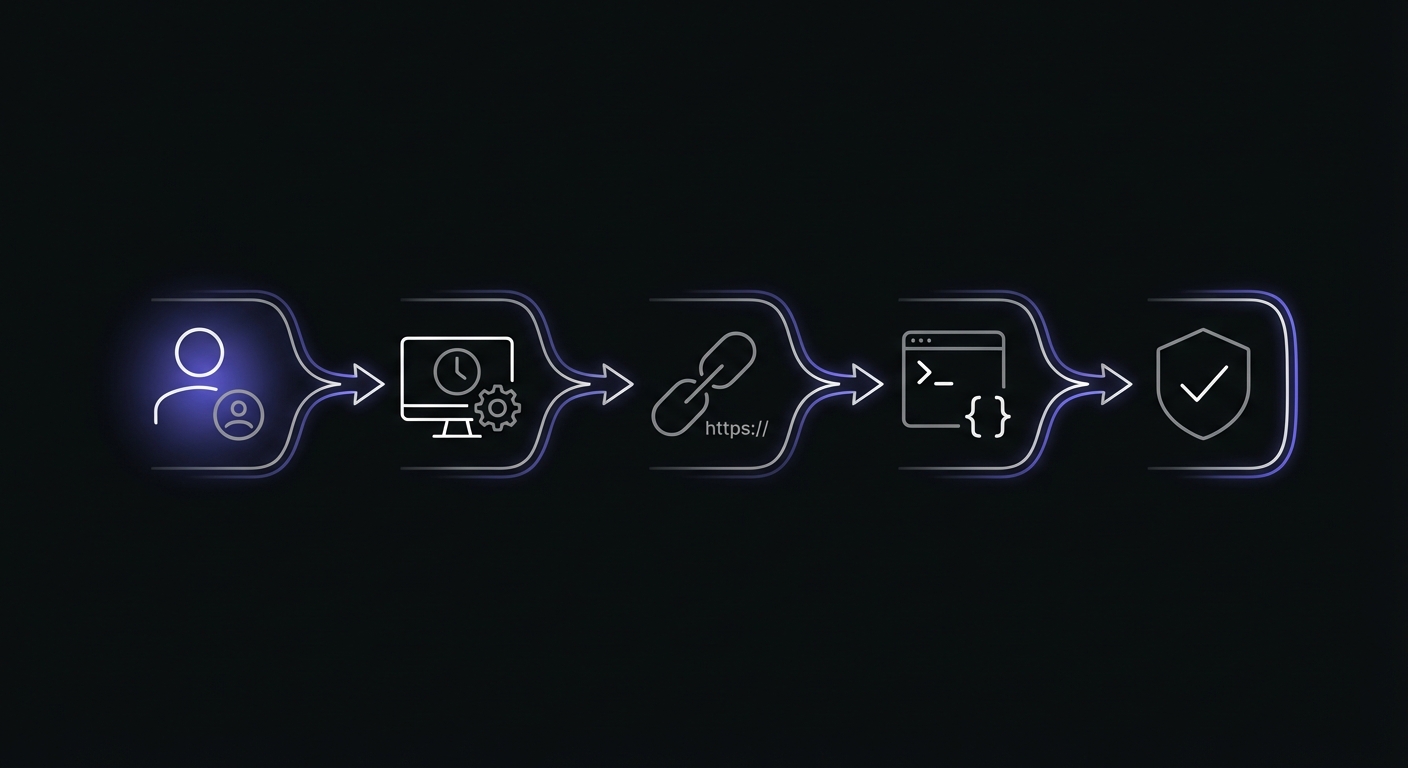
In the next five minutes, you will:
- Create a monitoring account
- Set up your first monitor
- Add monitoring to a cron job
- Verify the monitor is receiving pings
- Test that alerts actually reach you
Total time: approximately five minutes, possibly less.
Prerequisites
Before you start, you will need:
-
A cron job to monitor: Any scheduled task that you want to keep an eye on. If you do not have one in mind, your backup job or any daily task is a good starting point. Not sure how to read or write your cron schedule? See our guide on cron expression syntax explained simply.
-
An email address for alerts: You will receive alerts when your job does not run as expected. Slack and other channels can be added later.
-
curl or wget: Used to send pings from your cron job. These tools are installed by default on most Linux systems. Run
which curlto verify.
That is it. No credit card required. No complex infrastructure. Just a cron job and a way to receive email.
Step 1: Create Account (30 Seconds)
Go to the Cron Crew signup page and create a free account.
- Enter your email address
- Choose a password
- Click "Sign Up"
No credit card required. The free tier includes 15 monitors, which is enough for most small to medium setups.
You will receive a verification email. Click the link to verify your account and log in.
Step 2: Create Your First Monitor (1 Minute)
Once logged in, you will see your dashboard. Click the "New Monitor" button to create your first monitor.
Fill in the Details
Name: Give your monitor a descriptive name that you will recognize later. For example:
- "Nightly Database Backup"
- "Daily Report Generator"
- "Hourly Data Sync"
Schedule: Choose how often your job runs. You have two options:
Option A: Use a cron expression
If your job runs on a cron schedule, enter the expression directly. For example:
0 0 * * *for daily at midnight0 2 * * *for daily at 2 AM*/30 * * * *for every 30 minutes
The monitor will show you when the next expected run is, so you can verify the expression is correct. For a complete reference on cron syntax, see our cron expression guide.
Option B: Use a simple interval
If you prefer, select a simple interval like "every 1 hour" or "every 24 hours."
Grace Period: This is how long the monitor waits after the expected run time before alerting you. A good default is 5-10 minutes. This accounts for minor timing variations and prevents false alerts if your job takes a few minutes to complete.
For example, if your job is expected at midnight and you set a 5-minute grace period, you will get an alert if the job has not pinged by 12:05 AM.
Save the Monitor
Click "Create" or "Save" to create your monitor. You will be taken to the monitor's detail page.
Step 3: Get Your Ping URL (10 Seconds)
On the monitor detail page, you will see a unique ping URL. It looks something like this:
https://ping.example.com/abc123def456
This URL is unique to your monitor. When your cron job makes a request to this URL, the monitoring service records that the job ran successfully.
Copy this URL. You will need it in the next step.

Step 4: Add to Your Cron Job (2 Minutes)
Now you need to modify your cron job to ping the monitoring URL when it completes.
Option A: Simple Append
The easiest approach is to append a curl command to your existing cron entry using &&. The && operator means the curl only runs if your job succeeds.
Before:
0 0 * * * /home/user/scripts/backup.shAfter:
0 0 * * * /home/user/scripts/backup.sh && curl -fsS --retry 3 https://ping.example.com/abc123def456Let us break down the curl options:
-f: Fail silently on HTTP errors (no output)-s: Silent mode (no progress meter)-S: Show errors if they occur--retry 3: Retry up to 3 times if the request fails
To edit your crontab, run:
crontab -eFind your job, add the curl command, save, and exit.
Option B: Add Inside Your Script
If you prefer to keep your crontab clean, add the ping inside your script instead.
backup.sh:
#!/bin/bash

# Your backup logic
pg_dump mydb > /backups/backup-$(date +%Y%m%d).sql

# If we got here, backup succeeded. Signal monitoring.
curl -fsS --retry 3 https://ping.example.com/abc123def456
This approach is cleaner and makes the monitoring intent explicit in your code.
Option C: Signal Start and Finish
For more visibility, you can signal both when the job starts and when it finishes. This lets you track job duration.
#!/bin/bash

# Signal job start
curl -fsS --retry 3 https://ping.example.com/abc123def456/start

# Your backup logic
pg_dump mydb > /backups/backup-$(date +%Y%m%d).sql

# Signal job finish (success)
curl -fsS --retry 3 https://ping.example.com/abc123def456
The monitoring service will show you how long the job took to complete.
Option D: Report Failures with Details
For production systems, signal explicit failures when something goes wrong. This provides more context than a silent missed ping.
#!/bin/bash

PING_URL="https://ping.example.com/abc123def456"

# Signal job start
curl -fsS --retry 3 "$PING_URL/start"

# Run backup and capture output
if output=$(pg_dump mydb > /backups/backup-$(date +%Y%m%d).sql 2>&1); then
    # Success - signal completion
    curl -fsS --retry 3 "$PING_URL"
else
    # Failure - signal with exit code and output
    curl -fsS --retry 3 -X POST "$PING_URL/fail" \
        -H "Content-Type: application/json" \
        -d "{\"exit_code\": $?, \"output\": \"${output:0:1000}\"}"
fi
This approach sends the exit code and first 1000 characters of output when the job fails, giving you immediate context without checking logs.
Step 5: Test It Works (1 Minute)
You do not have to wait for your scheduled time to verify the setup works. Test it now.
Manual Test
Run the curl command directly from your terminal:
curl -fsS --retry 3 https://ping.example.com/abc123def456You should see no output (which means success). Check your monitoring dashboard and you should see the status change to "Up" or "Healthy" with a recent last ping time.
Run Your Job Manually
For extra confidence, run your actual job manually:
/home/user/scripts/backup.shAfter it completes, check the dashboard again. The last ping time should be updated.
Step 6: Test the Alert (1 Minute)
The most important thing to verify is that alerts actually reach you. There is no point monitoring if you never receive the notifications.
Use the Test Alert Button
Most monitoring services have a "Test Alert" or "Send Test Notification" button. Click it and verify you receive the test alert in your email (or Slack, if configured).
Or: Let the Monitor Timeout
If you want to test a real alert:
- Pause the monitor (if that option exists), or
- Wait until after the next expected run time plus grace period without pinging
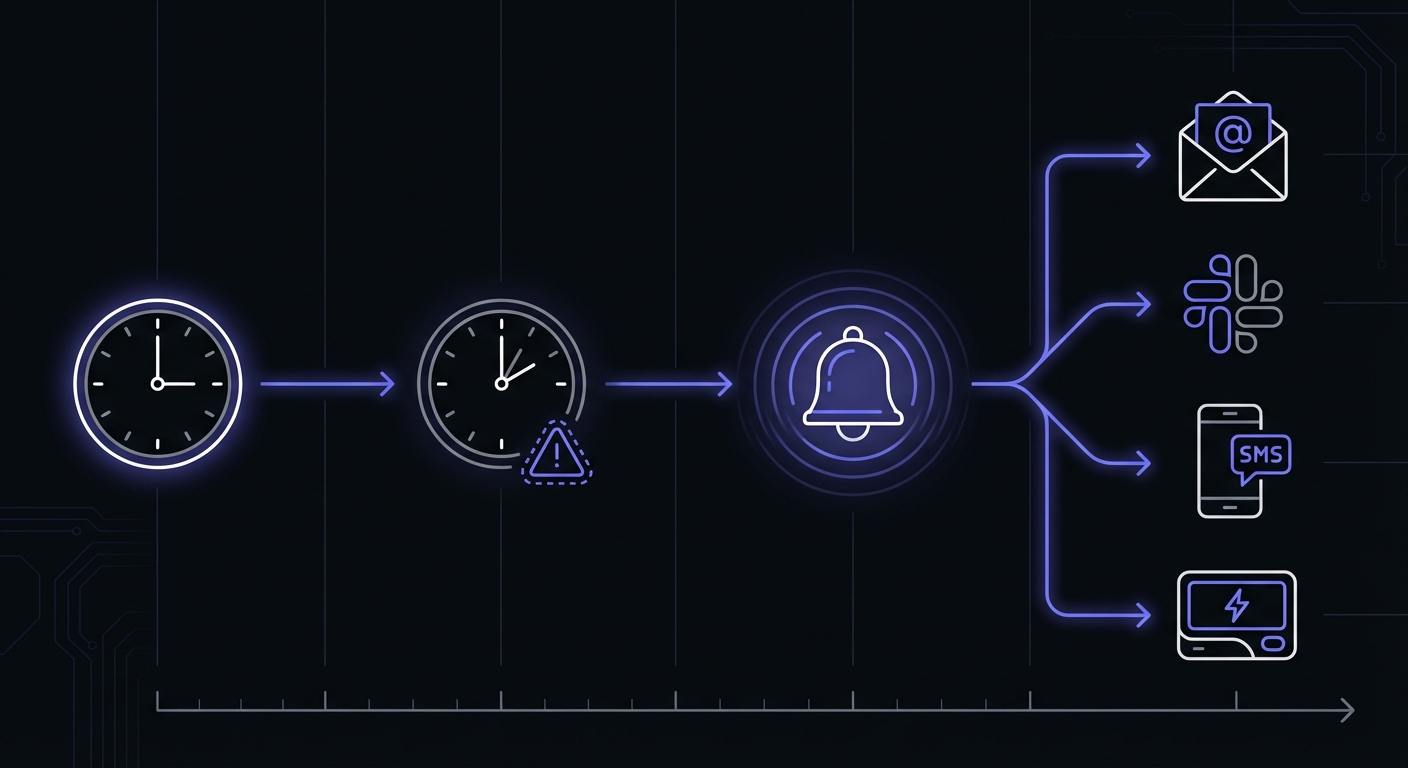
When the grace period expires without a ping, you should receive an alert. This confirms the entire flow works: missed ping, timeout, alert delivery.
After testing, remember to unpause the monitor or send a ping to restore the healthy state.
You Are Done
Congratulations. Your cron job is now monitored. Here is what you have accomplished:
- Created a monitoring account with a free tier
- Set up a monitor with the correct schedule and grace period
- Added a ping to your cron job that signals successful completion
- Verified the monitor receives pings
- Confirmed alerts reach you when jobs miss their schedule
From now on, if your job does not run, you will know within minutes instead of days.
Next Steps
Now that you have one job monitored, here are some ways to expand.
Add Start and Finish Signals for Duration Tracking
If you only added a finish ping, consider adding a start ping too. This lets you see how long your jobs take, which helps identify performance issues before they become problems.
curl -fsS https://ping.example.com/abc123/start && /scripts/job.sh && curl -fsS https://ping.example.com/abc123Connect Slack for Team Alerts
Email is good for personal notifications, but team alerts work better in Slack (or your team chat of choice). Add a Slack integration so the whole team sees alerts in a dedicated channel.
Monitor More Critical Jobs
You have 15 free monitors. Use them. Identify your other critical scheduled tasks and add monitoring to each:
- Database backups
- Report generation
- Data synchronization
- Email sending
- Cleanup jobs
- Cache rebuilding
Set Up Escalation
For critical jobs, configure escalation so that if the first alert is not acknowledged, a second alert goes to someone else or a different channel.
Document Your Monitoring
Keep a simple list of what jobs are monitored and what each monitor covers. This helps new team members understand your setup and ensures nothing critical is forgotten during infrastructure changes.
Troubleshooting
If your setup is not working, check these common issues.
Pings Not Showing Up
- Network access: Can the server reach the internet? Run
curl -I https://google.comto verify. - Firewall rules: Some servers block outbound HTTPS. Check with your hosting provider.
- Wrong URL: Copy the ping URL again from your dashboard. A single character difference breaks it.
- Job not running: Check
grep CRON /var/log/syslogto verify your cron job is executing.
False Alerts
- Grace period too short: If your job takes 10 minutes but your grace period is 5, you will get alerts every time. Set grace period longer than your job's maximum runtime.
- Timezone mismatch: Ensure your cron schedule and monitor use the same timezone. Servers often run in UTC while dashboards default to local time.
- Network timeouts: Add
--retry 3to your curl command so transient failures do not trigger alerts.
Grace Period Guidelines
Choose grace periods based on job duration:
| Job Type | Typical Duration | Recommended Grace |
|---|---|---|
| Quick checks | Under 1 minute | 5 minutes |
| Data syncs | 1-5 minutes | 10 minutes |
| Report generation | 5-15 minutes | 20 minutes |
| Database backups | 15-60 minutes | 30-60 minutes |
| Large data exports | 1+ hours | 1-2 hours |
Add buffer time for server load variations. A backup that takes 20 minutes on a quiet server might take 40 minutes during peak traffic.
Quick Reference
Here is a cheat sheet for adding monitoring to common cron setups.
Basic Bash Job
0 2 * * * /scripts/job.sh && curl -fsS --retry 3 https://ping.example.com/xxxPython Script
0 * * * * /usr/bin/python3 /scripts/job.py && curl -fsS --retry 3 https://ping.example.com/xxxNode.js Script
*/15 * * * * /usr/bin/node /scripts/job.js && curl -fsS --retry 3 https://ping.example.com/xxxWith Logging
0 2 * * * /scripts/job.sh >> /var/log/job.log 2>&1 && curl -fsS --retry 3 https://ping.example.com/xxxWith Lock File (Prevent Overlapping Runs)
0 * * * * flock -n /tmp/job.lock /scripts/job.sh && curl -fsS --retry 3 https://ping.example.com/xxxWith Timeout
0 2 * * * timeout 1h /scripts/job.sh && curl -fsS --retry 3 https://ping.example.com/xxxFull Script Wrapper
For production jobs, wrap your entire script with proper monitoring:
#!/bin/bash
set -e

PING_URL="https://ping.example.com/abc123"
LOG_FILE="/var/log/backup-$(date +%Y%m%d).log"

# Signal start
curl -fsS --retry 3 "$PING_URL/start"

# Run with logging
{
    echo "=== Backup started at $(date) ==="

    # Verify disk space (minimum 10GB)
    available=$(df -BG /backups | awk 'NR==2 {print $4}' | tr -d 'G')
    if [ "$available" -lt 10 ]; then
        echo "ERROR: Insufficient disk space: ${available}GB available"
        exit 1
    fi

    # Run backup
    pg_dump mydb > /backups/backup-$(date +%Y%m%d).sql

    # Verify backup is not empty
    if [ ! -s /backups/backup-$(date +%Y%m%d).sql ]; then
        echo "ERROR: Backup file is empty"
        exit 1
    fi

    echo "=== Backup completed at $(date) ==="
} >> "$LOG_FILE" 2>&1

# Signal success
curl -fsS --retry 3 "$PING_URL"
This wrapper includes disk space verification, empty file detection, and logging.
Conclusion
Setting up cron monitoring really does take about five minutes. The process is straightforward:
- Create an account
- Create a monitor with your job's schedule
- Add a curl ping to your cron job
- Verify it works
That small investment of time buys you peace of mind that your scheduled tasks are running. When something goes wrong, you will know immediately instead of discovering it days later through a customer complaint or data audit.
You now have one monitored cron job. As you see the value, expand to your other scheduled tasks. Before long, you will have comprehensive coverage across your critical automation, and you will wonder how you ever operated without it. For additional reliability practices beyond monitoring, review our cron job best practices guide.
Ready to monitor your first cron job? Sign up for Cron Crew's free tier and follow this guide. Five minutes from now, you will have reliable monitoring in place. For a deep dive into monitoring strategies, see our complete guide to cron job monitoring. And for help choosing the right tool, check out our best cron monitoring tools comparison.