Cron Job Best Practices for Reliability
Cron jobs run unattended. When they work, nobody notices. When they fail, nobody notices either. Here are ten best practices for writing cron jobs you can trust.

Cron Job Best Practices for Reliability
Cron jobs run unattended. They execute while you sleep, while you are in meetings, while you are on vacation. When they work, nobody notices. When they fail, nobody notices either, until the consequences catch up with you.
Building reliable cron jobs requires intentionality. Small decisions, using absolute paths, adding monitoring, handling errors properly, compound into the difference between a rock-solid automation system and a source of constant firefighting.
This guide covers ten best practices for writing cron jobs that you can trust.
Why Best Practices Matter
Before diving into specific practices, let us understand why reliability requires deliberate effort.
Cron Jobs Run Unattended
There is no user watching when your job runs. No one will notice if it silently fails. The feedback loop that exists with interactive software, where users immediately report problems, does not exist for scheduled tasks.
Failures Are Silent by Default
Cron does not have a notification system. When a job fails, cron does not alert you. When a job does not run at all, cron does not alert you. Silence is the default, regardless of the outcome. Learn more about this challenge in our article on 5 signs your cron jobs are failing silently.
Small Issues Compound Over Time
A backup job that fails once is a minor inconvenience. A backup job that fails silently for three weeks is a potential disaster. The longer issues go undetected, the more damage they can cause.
Reliability Requires Intentionality
Reliable cron jobs do not happen by accident. They result from consciously applying best practices: monitoring, error handling, logging, and defensive coding. Each practice adds a layer of protection.
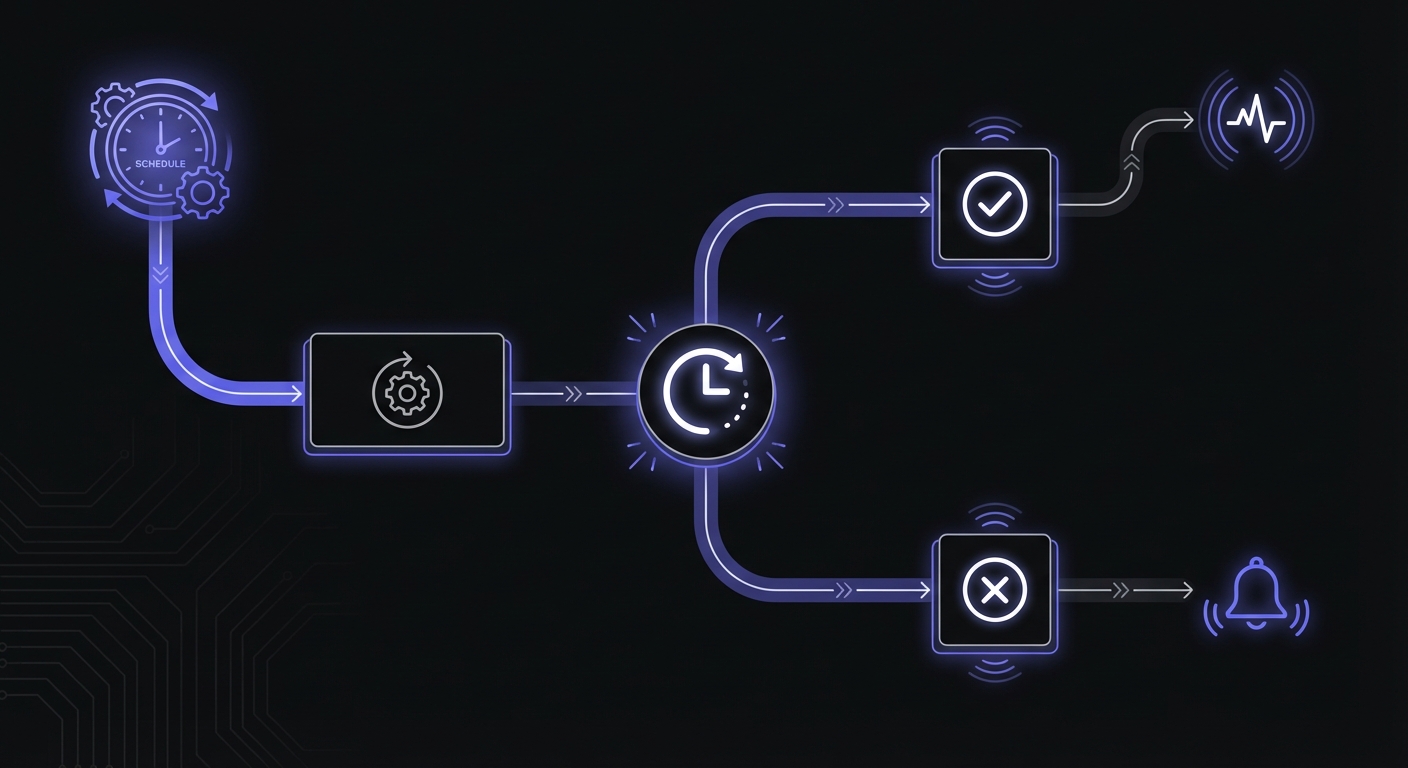
Best Practice 1: Add Monitoring
This is the most important practice. Everything else on this list helps, but monitoring is the safety net that catches failures regardless of their cause.
Why It Matters
Without monitoring, you rely on luck to discover failures. With monitoring, you learn about problems immediately.
How to Implement
Add a curl command that pings a monitoring service when your job completes successfully:
0 0 * * * /scripts/backup.sh && curl -fsS --retry 3 https://ping.example.com/abc123The && operator ensures the ping only happens if your script exits successfully. If the script fails, no ping is sent, and your monitoring service alerts you.
Choose a Monitoring Service
Most services offer free tiers that cover small setups:
- Cron Crew: 15 free monitors
- Healthchecks.io: 20 free monitors
- Cronitor: 5 free monitors
Setting up monitoring takes about five minutes and provides more value than any other single practice. Follow our step-by-step guide to set up cron monitoring in 5 minutes.
Best Practice 2: Use Absolute Paths
Cron runs with a minimal environment. Relative paths that work in your interactive shell often fail in cron.
Why It Matters
When you run a script from your terminal, your shell has a rich PATH environment variable that knows where to find executables. Cron's PATH is typically just /usr/bin:/bin, which means many commands will not be found.
Bad Example
# This might work in your shell but fail in cron
0 0 * * * backup.sh
0 0 * * * node /scripts/process.js
Good Example
# Use full paths to both scripts and executables
0 0 * * * /home/user/scripts/backup.sh
0 0 * * * /usr/local/bin/node /home/user/scripts/process.js
Find the Absolute Path
If you are not sure where an executable is located, use which:
which node    # Output: /usr/local/bin/node
which python3 # Output: /usr/bin/python3
which pg_dump # Output: /usr/bin/pg_dump
Best Practice 3: Redirect Output to Logs
By default, cron sends job output to the local user's mailbox. In practice, this often means output goes nowhere useful because local mail is not monitored.
Why It Matters
When a job fails, you need to know what happened. If output is discarded, debugging becomes guesswork.
Bad Example
# Output goes to local mail (rarely checked) or nowhere
0 0 * * * /scripts/job.sh

# Even worse: explicitly discarding all output
0 0 * * * /scripts/job.sh > /dev/null 2>&1
Good Example
# Redirect both stdout and stderr to a log file
0 0 * * * /scripts/job.sh >> /var/log/job.log 2>&1
The >> appends to the log file instead of overwriting it. The 2>&1 redirects stderr to the same location as stdout.
Implement Log Rotation
Log files grow unbounded if you do not manage them. Use logrotate or a similar tool to keep log files from filling your disk:
# /etc/logrotate.d/cron-jobs
/var/log/job.log {
    weekly
    rotate 4
    compress
    missingok
    notifempty
}
Best Practice 4: Use Lock Files
If a job takes longer than expected and overlaps with its next scheduled run, you can end up with multiple instances running simultaneously. This often causes data corruption or resource contention. This is one of the common cron job failures we see regularly.
Why It Matters
An hourly job that normally takes 20 minutes might occasionally take 90 minutes due to increased load. Without protection, you will have two (or more) instances fighting over the same resources.
How to Implement with flock
The flock command provides robust file locking:
0 * * * * flock -n /tmp/hourly-job.lock /scripts/hourly-job.shThe -n flag means "non-blocking": if the lock is already held, flock exits immediately rather than waiting. This prevents job pileup.
Alternative: Manual Lock Files
If flock is not available, implement locking in your script:
#!/bin/bash
LOCKFILE="/tmp/myjob.lock"

# Check if lock exists
if [ -f "$LOCKFILE" ]; then
    echo "Another instance is running"
    exit 1
fi

# Create lock file and ensure it's removed on exit
trap "rm -f $LOCKFILE" EXIT
echo $$ > "$LOCKFILE"

# Your job logic here
The trap command ensures the lock file is removed even if the script fails.
Best Practice 5: Handle Errors Gracefully
By default, bash scripts continue executing even when commands fail. A failure in the middle of your script might leave things in an inconsistent state.
Why It Matters
Consider a script that exports data, compresses it, and uploads it. If the export fails but the script continues, you might upload an empty or corrupt file.
Enable Strict Mode
Add these lines at the top of your bash scripts:
#!/bin/bash
set -e          # Exit immediately if a command fails
set -o pipefail # Catch errors in piped commands
set -u          # Treat unset variables as errors
Add Error Trapping
Log where errors occur to aid debugging:
#!/bin/bash
set -e
set -o pipefail

trap 'echo "Error on line $LINENO. Exit code: $?" >&2' ERR

# Your script continues here
Use Explicit Error Checks
For critical operations, add explicit checks:
#!/bin/bash
set -e

# Backup database
if ! pg_dump mydb > /backups/backup.sql; then
    echo "Database backup failed" >&2
    exit 1
fi

# Compress backup
if ! gzip /backups/backup.sql; then
    echo "Compression failed" >&2
    exit 1
fi

echo "Backup completed successfully"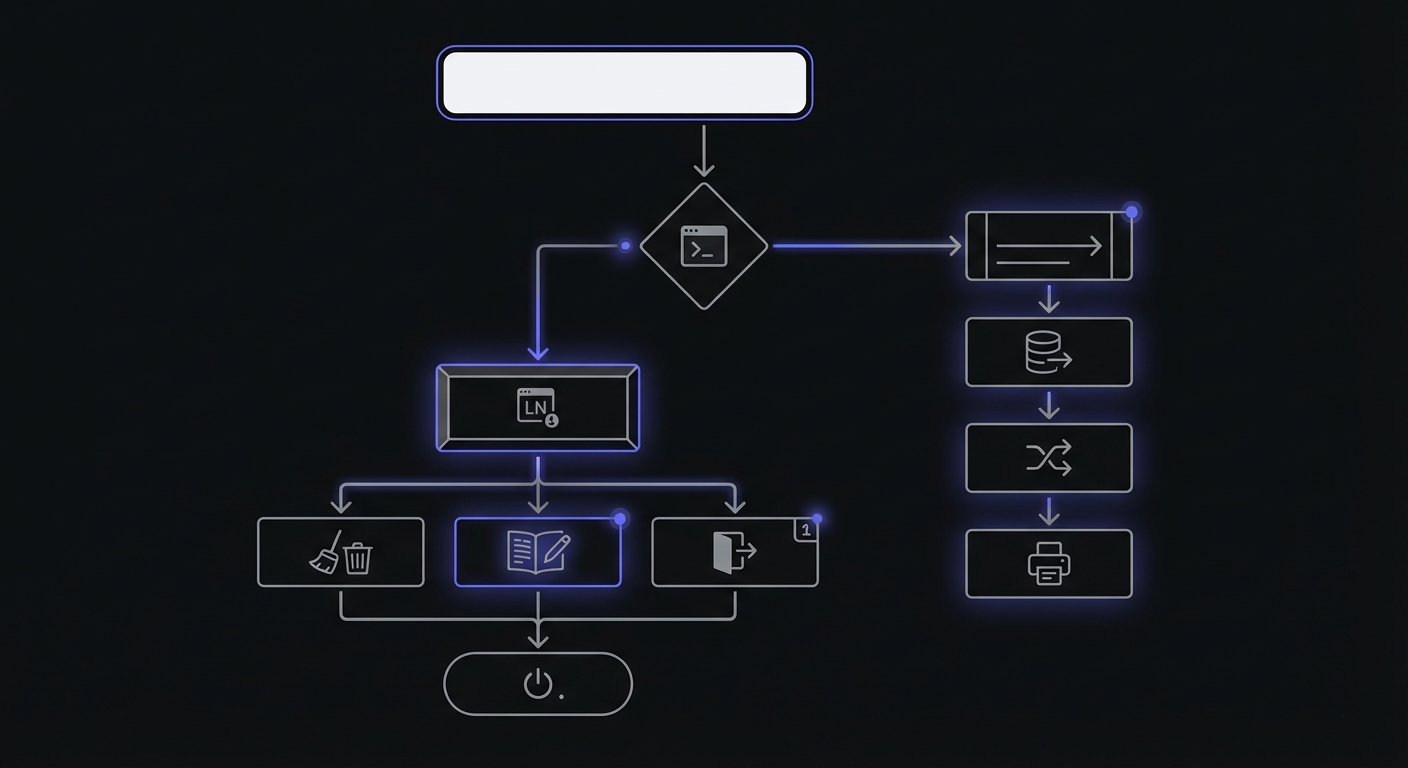
Best Practice 6: Set Timeouts
Jobs should not run indefinitely. A hung process consumes resources and might block subsequent runs.
Why It Matters
A backup job that normally takes 30 minutes might hang due to a network issue or database lock. Without a timeout, it could run forever, consuming resources and preventing the next scheduled run.
How to Implement
Use the timeout command to limit execution time:
0 0 * * * timeout 2h /scripts/backup.sh && curl -fsS https://ping.example.com/xxxIf the backup takes longer than 2 hours, timeout kills it and exits with a non-zero code, which prevents the monitoring ping and triggers an alert.
Choose Appropriate Timeouts
Set timeouts based on how long the job normally takes plus a reasonable buffer:
- Job normally takes 10 minutes: Set timeout to 30-60 minutes
- Job normally takes 2 hours: Set timeout to 4-6 hours
If you are not sure how long your job takes, add monitoring with start/finish signals to measure it.
Best Practice 7: Make Jobs Idempotent
An idempotent job can run multiple times without causing problems. This is crucial for reliability because jobs sometimes need to be re-run manually, or might accidentally run twice.
Why It Matters
If your job crashes halfway through and you run it again, what happens? A well-designed idempotent job will pick up where it left off or safely start over. A poorly designed job might duplicate data, send duplicate emails, or corrupt state.
Examples of Idempotent Design
Use UPSERT instead of INSERT:
-- Instead of INSERT which might create duplicates
INSERT INTO reports (date, data) VALUES ('2026-01-23', '...');

-- Use INSERT ... ON CONFLICT to handle re-runs safely
INSERT INTO reports (date, data) VALUES ('2026-01-23', '...')
ON CONFLICT (date) DO UPDATE SET data = EXCLUDED.data;
Check before sending:
# Before sending an email, check if already sent
if not already_sent_today(user_id):
    send_daily_digest(user_id)
    mark_as_sent(user_id)
Use unique identifiers for files:
# Instead of overwriting
pg_dump mydb > /backups/backup.sql

# Use timestamps to avoid collision
pg_dump mydb > /backups/backup-$(date +%Y%m%d-%H%M%S).sql
Best Practice 8: Document Your Cron Jobs
Cron jobs often outlive the developers who created them. Without documentation, future maintainers (including future you) will struggle to understand what jobs exist and why.
Why It Matters
Six months from now, someone will look at your crontab and wonder: "What does this job do? Is it still needed? What happens if I change it?"
Add Comments to Your Crontab
# Daily database backup to S3
# Alerts: #ops-alerts Slack channel
# Owner: backend team
# Last reviewed: 2026-01-23
0 2 * * * /scripts/backup.sh && curl -fsS https://ping.example.com/backup

# Hourly cache refresh - keeps API response times low
# Safe to disable temporarily if needed
0 * * * * /scripts/refresh-cache.sh && curl -fsS https://ping.example.com/cache

# Weekly cleanup of old temp files
# Runs Sunday 4am to avoid business hours
0 4 * * 0 /scripts/cleanup.sh && curl -fsS https://ping.example.com/cleanup
Maintain a Runbook
For critical jobs, document what to do when things go wrong:
## Daily Backup Job

**Schedule**: 2:00 AM UTC daily
**Monitor**: https://monitoring.example.com/backup
**Script**: /scripts/backup.sh

### If the job fails:

1. Check /var/log/backup.log for error messages
2. Common issues:
   - Disk full: Run `/scripts/cleanup-old-backups.sh`
   - Database locked: Check for long-running queries
   - Network timeout: Verify S3 connectivity
3. Once fixed, run `/scripts/backup.sh` manually
4. Verify backup in S3 console
Best Practice 9: Test in Staging First
Deploying cron jobs directly to production is risky. A typo in your cron expression could run a job every minute instead of every day. A bug in your script could corrupt production data.
Why It Matters
Cron job bugs often have delayed consequences. A misconfigured schedule might not be noticed until the job runs at the wrong time. A data bug might not be noticed until someone queries the affected data.
Test the Full Setup
Do not just test the script. Test everything:
- Test the script: Run it manually and verify it does what you expect
- Test the schedule: Verify the cron expression runs when you think it should
- Test monitoring: Verify that alerts reach the right people
- Test failure handling: Intentionally cause a failure and verify you get notified
Use a Staging Environment
If possible, run your cron jobs in staging for a few days before deploying to production. This catches issues like:
- Incorrect schedules
- Environment differences
- Resource constraints
- Integration issues
Best Practice 10: Review Regularly
Cron jobs accumulate over time. Some become obsolete. Some need updating. Without regular review, your crontab becomes a graveyard of forgotten tasks.
Why It Matters
An outdated cron job might:
- Waste resources doing work that is no longer needed
- Fail silently because the systems it interacts with have changed
- Create security risks by using outdated code or credentials
Quarterly Review Checklist
Schedule a quarterly review of your cron jobs:
- Is each job still needed?
- Is each job still working correctly?
- Are schedules still appropriate?
- Is documentation up to date?
- Is monitoring still active and alerting correctly?
- Are there any jobs that should be added?
Remove Unused Jobs
It is tempting to comment out unused jobs "just in case." Resist this temptation. Commented-out code is confusing and suggests you are not confident in your decisions. If a job is not needed, delete it. Version control keeps the history if you ever need it back.
Additional Best Practices
Beyond the core ten practices, several additional considerations help ensure reliable cron job operation.
Timezone Handling
Cron uses the system's local timezone by default, which creates problems during daylight saving time transitions and when coordinating jobs across servers in different regions.
Schedule in UTC: Configure your cron daemon to use UTC, or explicitly set the timezone in your crontab:
# Set timezone for all jobs in this crontab
CRON_TZ=UTC

# Now these run at UTC times regardless of server location
0 2 * * * /scripts/daily-backup.sh
Be aware of DST transitions: A job scheduled for 2:30 AM might run twice (when clocks fall back) or not at all (when clocks spring forward) in local time. UTC avoids this ambiguity.
Document expected timezones: When multiple teams operate cron jobs, document which timezone each job uses to prevent confusion during incident response.
Security Best Practices
Cron jobs often run with significant privileges and access sensitive resources. Apply security principles to minimize risk.
Run with least privilege: Do not run jobs as root unless absolutely necessary. Create dedicated service accounts with only the permissions each job requires:
# Instead of running as root
0 0 * * * /scripts/cleanup.sh

# Run as a dedicated user with limited permissions
0 0 * * * su - cleanup-user -c "/scripts/cleanup.sh"
Protect credentials: Never embed passwords or API keys directly in crontab entries. Use environment files with restricted permissions:
# Load credentials from a protected file
0 0 * * * source /etc/cron.d/secrets.env && /scripts/sync.sh
Ensure the secrets file is readable only by the cron job user: chmod 600 /etc/cron.d/secrets.env.
Audit crontab changes: Monitor /var/spool/cron/ for unauthorized modifications. Attackers sometimes add malicious cron jobs for persistence.
Resource Management
Multiple cron jobs competing for resources can degrade system performance and cause failures.
Stagger job schedules: The "thundering herd" problem occurs when many jobs start simultaneously. Instead of scheduling everything at the top of the hour:
# Bad: All jobs start at midnight
0 0 * * * /scripts/backup.sh
0 0 * * * /scripts/reports.sh
0 0 * * * /scripts/cleanup.sh

# Better: Stagger start times
0 0 * * * /scripts/backup.sh
15 0 * * * /scripts/reports.sh
30 0 * * * /scripts/cleanup.sh
Add random delays for distributed systems: When the same job runs on multiple servers, add a random delay to prevent simultaneous execution:
0 * * * * sleep $((RANDOM \% 300)) && /scripts/distributed-job.shThis spreads job execution over a 5-minute window.
Schedule resource-intensive jobs during off-peak hours: Run heavy jobs (backups, reports, data processing) during periods of low user activity.
Cron Syntax Quick Reference
Use this table when writing cron expressions:
| Field | Values | Special Characters |
|---|---|---|
| Minute | 0-59 | * , - / |
| Hour | 0-23 | * , - / |
| Day of month | 1-31 | * , - / |
| Month | 1-12 | * , - / |
| Day of week | 0-6 (Sun-Sat) | * , - / |
Common patterns:
| Expression | Schedule |
|---|---|
0 0 * * * | Daily at midnight |
0 */6 * * * | Every 6 hours |
*/15 * * * * | Every 15 minutes |
0 9 * * 1-5 | Weekdays at 9 AM |
0 0 1 * * | First of each month |
@reboot | Once at startup |
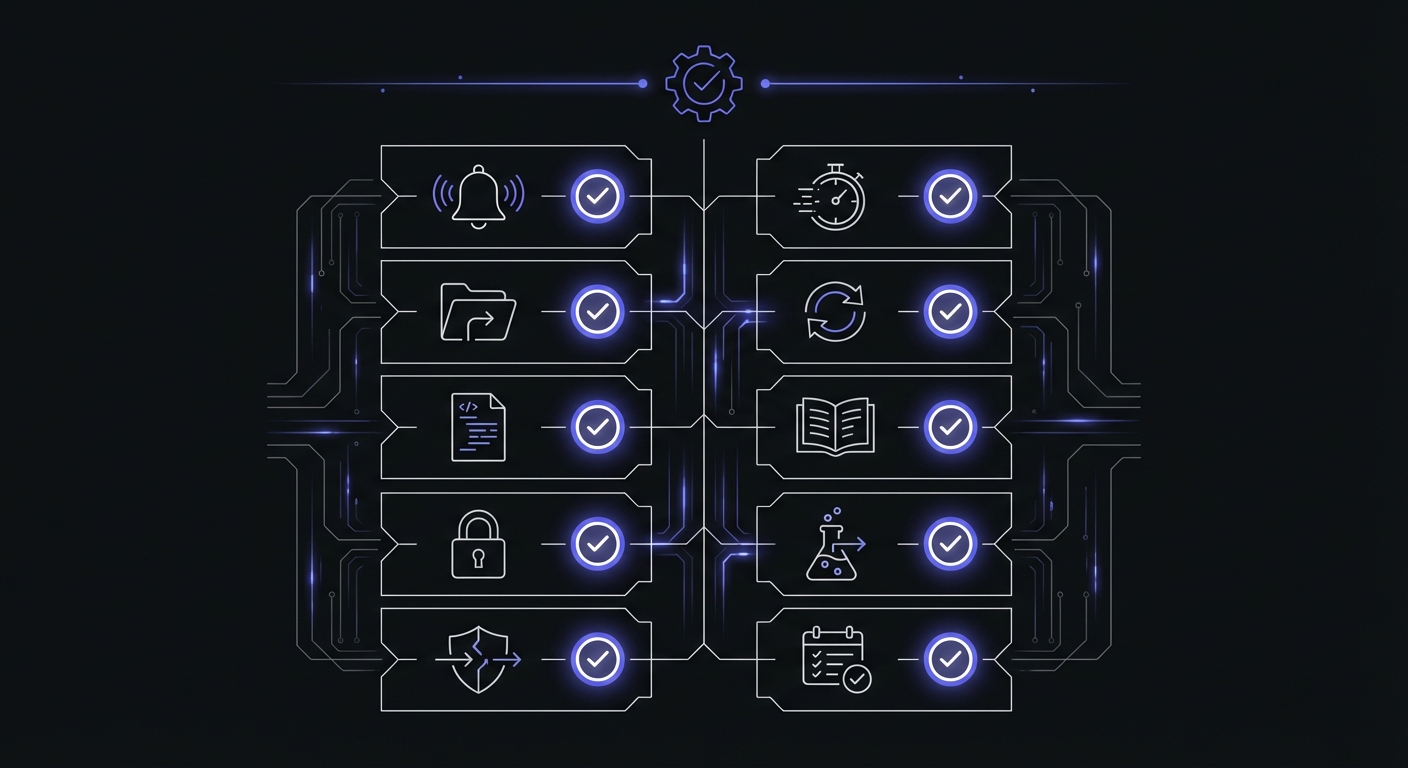
New Cron Job Setup Checklist
When setting up a new cron job, use this checklist to ensure you have covered all the bases:
- Use absolute paths for scripts and executables
- Redirect output to log files (not /dev/null)
- Add monitoring to alert on failures
- Add a lock file if the job might overlap
- Set an appropriate timeout
- Enable error handling (set -e, set -o pipefail)
- Make the job idempotent
- Test in staging first
- Document the job's purpose and owner
- Verify alerts reach the right people
Conclusion
Reliable cron jobs are built, not born. Each best practice we covered adds a layer of protection:
- Monitoring catches failures regardless of cause
- Absolute paths prevent environment issues
- Logging enables debugging
- Lock files prevent overlap
- Error handling makes failures explicit
- Timeouts prevent runaway processes
- Idempotency enables safe re-runs
- Documentation enables future maintenance
- Staging testing catches issues before production
- Regular review keeps your setup current
You do not need to implement all ten practices on day one. Start with monitoring, as it provides the most value with the least effort. Then add practices incrementally as you encounter the problems they solve.
Ready to make your cron jobs more reliable? Start by adding monitoring to your most critical job. Sign up for Cron Crew's free tier, set up your first monitor in five minutes, and start building confidence in your scheduled tasks. For comprehensive coverage of monitoring strategies, see our complete guide to cron job monitoring, and compare your options in our guide to how to choose cron monitoring.